
Help Center
Social Media
Plan, schedule, and analyze social media posts across Facebook, Instagram, X (Twitter), LinkedIn, TikTok, YouTube, Pinterest, and Google Business Profile.
Last updated
The Social Media module lets you manage your social presence without leaving the CRM. Create posts, schedule them across multiple platforms, route them through an approval workflow, and track engagement - all from one place.
Overview#
Social Media brings your publishing workflow into the CRM so your team can plan content, collaborate on approvals, and measure results alongside your sales and marketing data. Supported platforms include Facebook, Instagram, X (Twitter), LinkedIn, TikTok, YouTube, Pinterest, and Google Business Profile.
Connecting Your Accounts#
Posting to Facebook, Instagram, X (Twitter), LinkedIn, TikTok, YouTube, and Pinterest is powered by Zernio (formerly Late). Create a Zernio account, connect those profiles there, then add your Zernio API key in your sub-account integration settings.
Google Business Profile is the exception: posts publish directly through the Google connection you already use for reviews (connected under Settings → Integrations), so no Zernio account is needed for Google Business. Once your accounts are linked, you can publish to all of them from the planner below.
| Network | Posts | Stories / Reels | Analytics |
|---|---|---|---|
| Yes | Yes | Yes | |
| Yes | Yes | Yes | |
| X (Twitter) | Yes | - | Yes |
| Yes | - | Yes | |
| TikTok | Yes | Yes | Yes |
| YouTube | Yes | - | Yes |
| Yes | - | Yes | |
| Google Business Profile | Yes | - | Yes |
Social Planner#
The Social Planner is where you create and schedule your posts.
Creating a Post#
- Click New Post
- Select one or more platforms to publish to
- Write your caption in the composer - a character count updates in real time to show limits for each platform
- Optionally customize the caption per platform if you need different wording for different audiences
- Posting to Google Business Profile? Pick a post type - Update, Event, or Offer. Event reveals title and date fields; Offer additionally reveals coupon code, redeem link, and terms. You can also add a call-to-action button with an https link (Google ignores a call to action on Offer posts, so the composer does not offer one there). If your Google connection manages more than one location, a checklist lets you pick which locations the post goes to - all are selected by default, and each location reports its own success or failure with a link to the live post
Media Uploads#
Attach images, videos, or carousels to your post:
- Drag and drop files into the composer or click the media button to browse
- Preview how each attachment will appear on the selected platforms
- Supported formats include JPEG, PNG, GIF, and MP4
- The system warns you if a file exceeds a platform's size or dimension limits
- Google Business posts accept photos only - JPG or PNG, at least 10 KB and 400x300 pixels, no videos. Anything Google would reject is flagged with the actual size or dimensions when you attach it, not as a cryptic error after the post has already failed
Scheduling#
Choose when your post goes live:
| Option | What It Does |
|---|---|
| Post Now | Publishes immediately to all selected platforms |
| Schedule | Pick a specific date and time - the post is queued and sent automatically |
| Save as Draft | Saves the post without scheduling so you can come back to it later |
| Submit for Review | Sends the post into the approval queue - see Approval Workflow below |
The calendar view shows all scheduled posts on a timeline, making it easy to spot gaps in your content plan. Retracting a scheduled post - back to draft, or into review - also withdraws the queued copy from the publishing connector, so stale content cannot go out anyway.
Multi-Platform Publishing#
When you select multiple platforms, the post is published to each one simultaneously at the scheduled time. Platform-specific features (such as Instagram carousels or LinkedIn document posts) are handled automatically based on your media and content.
Post History#
The Post History page shows every post that has been published, scheduled, or drafted.
Viewing Past Posts#
Each entry displays the caption preview, attached media thumbnails, the platforms it was published to, the publish date, and its current status.
Filtering#
Narrow down the list using filters:
- Platform - Show posts for a specific platform only
- Status - Filter by Published, Scheduled, Draft, or Failed
- Date range - Restrict to a specific time window
- Author - Show posts created by a particular team member
Click any post to view its full details, engagement metrics, and comments.
From the detail view - in the Planner and the History tab alike - you can Edit a post or Duplicate it. Duplicate opens the composer pre-filled with the post's text, platforms, and Google Business details (without the schedule or media), so a variant for another location takes seconds instead of retyping. Published, failed, and partially published posts can all be duplicated.
Analytics#
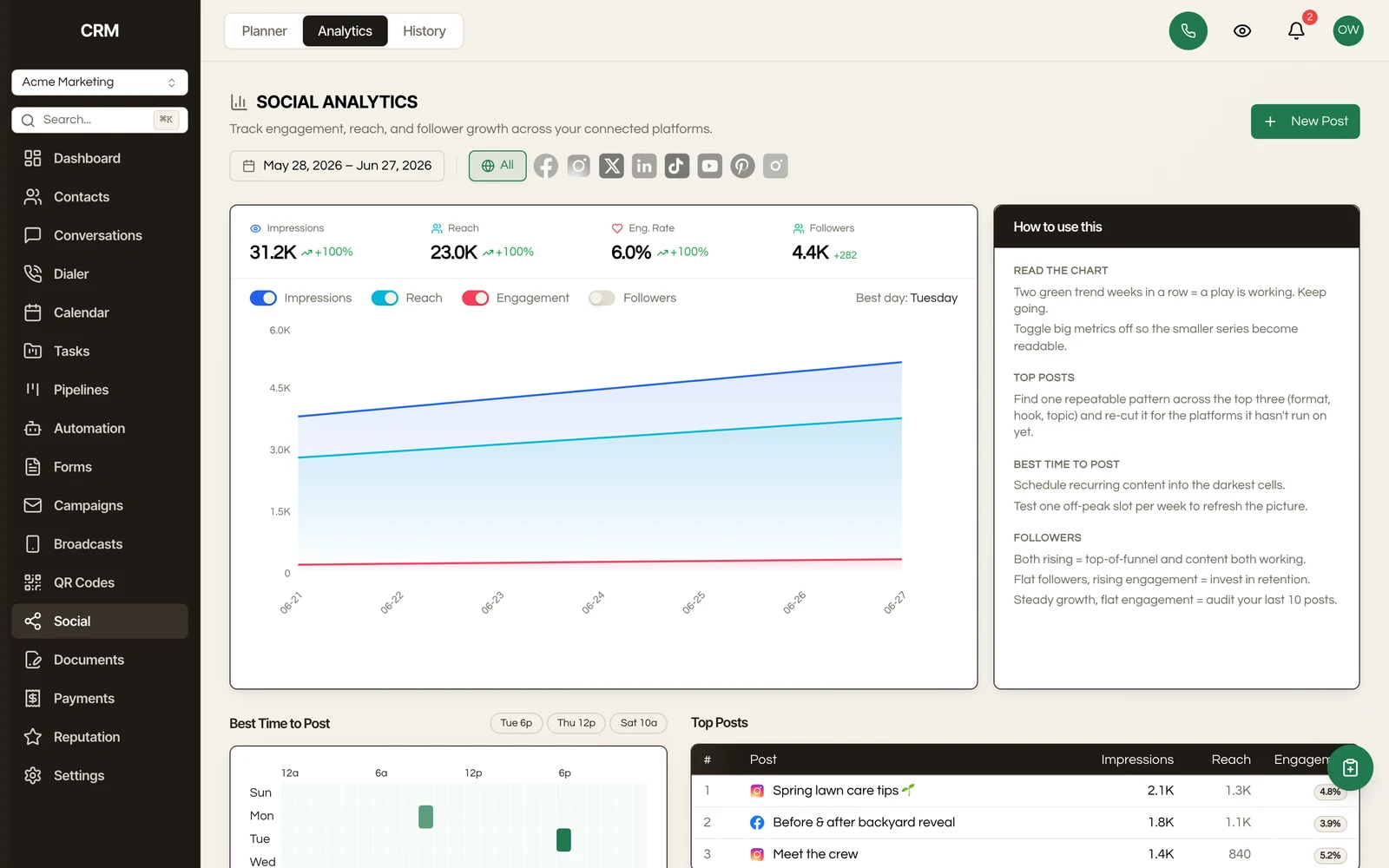
The Analytics section provides a breakdown of how your social content is performing.
Engagement Metrics#
Track the key numbers for each post and across your accounts:
- Impressions - How many times your content was displayed
- Reach - The number of unique users who saw your content
- Likes, Comments, Shares - Individual engagement actions broken down by type
- Engagement Rate - Total engagements divided by reach, shown as a percentage
Follower Growth#
A chart tracks your follower count over time for each connected platform. View growth by day, week, or month to identify trends.
Per-Platform Breakdown#
A table compares performance across platforms side by side, showing impressions, reach, engagement rate, and follower change for each connected account. This helps you identify which platforms deliver the best results for your content.
Approval Workflow#
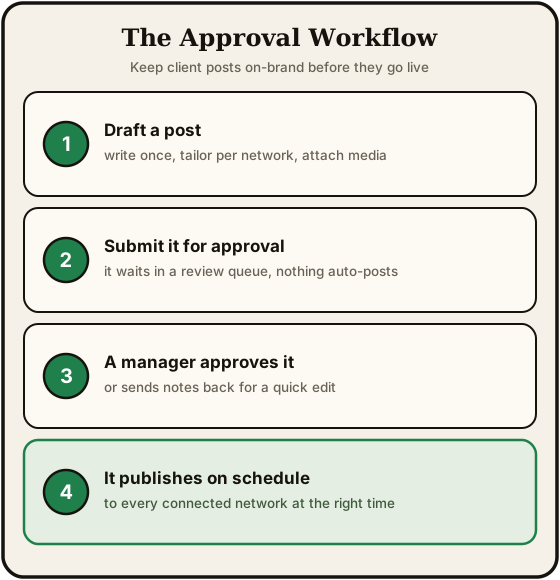
For teams that need editorial oversight, the approval workflow adds a review step before posts go live.
Submitting for Approval#
- Create your post in the Social Planner
- Instead of scheduling directly, click Submit for Approval
- The post enters a Pending Approval status and the designated approver is notified
Approving or Rejecting#
Approvers see pending posts in a dedicated queue:
- Approve - The post moves to its scheduled time (or publishes immediately if no schedule was set)
- Request Changes - Add a comment explaining what needs to change and send the post back to the author
- Reject - Decline the post entirely with a reason
The author is notified of the decision and can edit and resubmit if changes were requested.
Who Can Approve#
Approval permissions are managed in your sub-account settings. You can designate specific team members as approvers, or allow anyone with the appropriate role to approve posts.
Summary#
| Feature | Detail |
|---|---|
| Platforms | Facebook, Instagram, X (Twitter), LinkedIn, TikTok, YouTube, Pinterest, Google Business Profile |
| Composer | Multi-platform with per-platform caption customization and media uploads; Google Business post types (Update, Event, Offer) with call-to-action buttons and per-location targeting |
| Scheduling | Immediate, scheduled, or saved as draft with a calendar view |
| Post history | Full archive with filters for platform, status, date, and author |
| Analytics | Impressions, reach, engagement rate, follower growth, and per-platform comparison |
| Approvals | Submit, approve, request changes, or reject with notifications at each step |