
Help Center
Invoicing
Create invoices and estimates, manage products, accept online payments, and set up recurring billing.
Last updated
The Invoicing module lets you create and send invoices, estimates, and recurring invoices. Clients can view invoices online and pay via credit card if you have connected Stripe.
Overview#
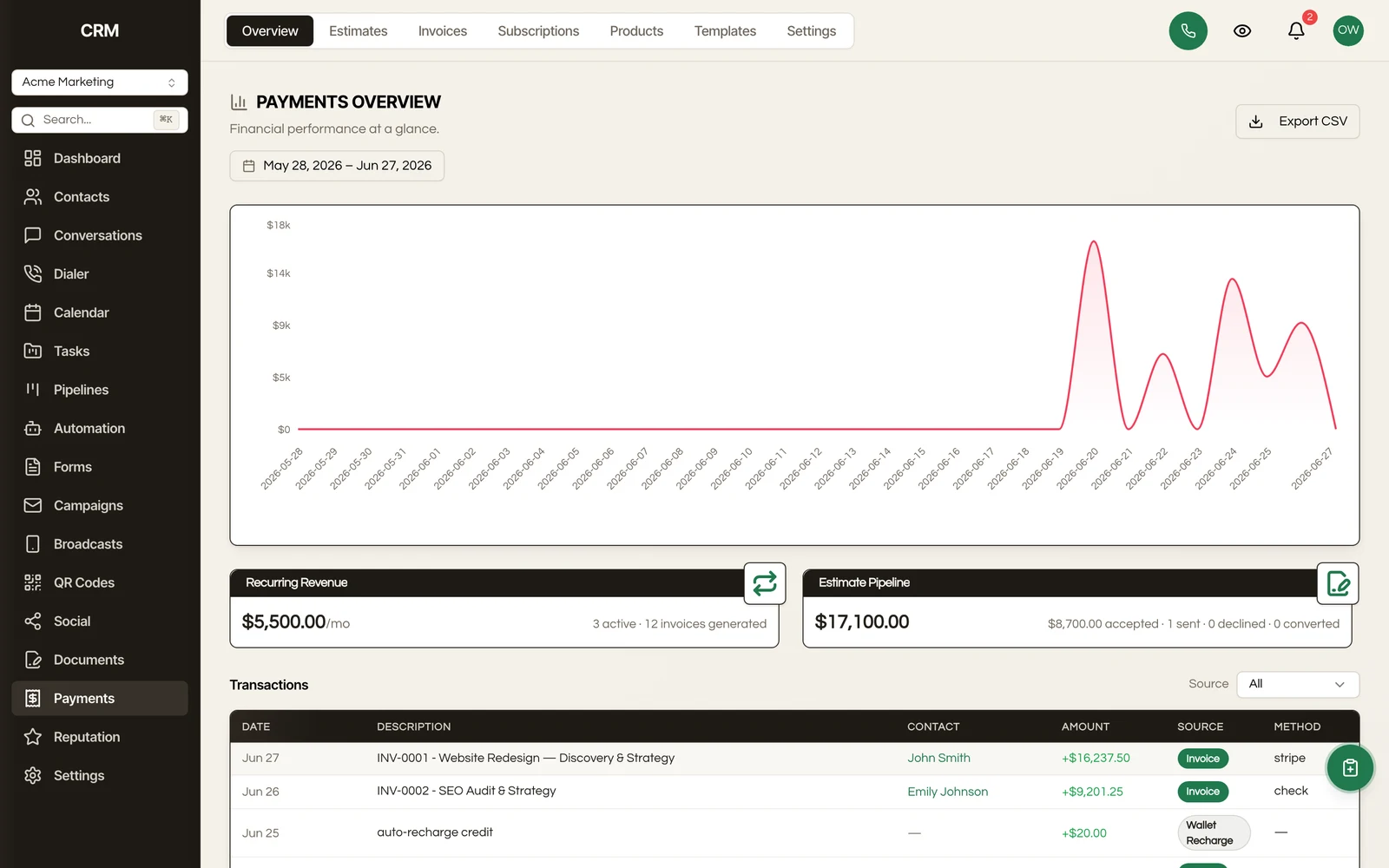
The Overview tab is the landing page for the Payments module. It shows a unified financial dashboard combining data from your invoices, subscriptions, and estimates.
What you'll see:
- Revenue Collected - total payments received in the selected date range
- Outstanding & Overdue - unpaid invoice balances and overdue counts
- Revenue Over Time - daily revenue trend chart
- Invoice Status Breakdown - how many invoices are in each status (draft, sent, paid, overdue, etc.)
- Recurring Revenue (MRR) - your monthly recurring revenue from active subscriptions
- Estimate Pipeline - total estimate value, accepted amounts, and conversion counts
- Revenue by Product - which products or services are generating the most revenue
Use the date range picker at the top to adjust the reporting period (presets: 7 days, 30 days, 90 days, year-to-date). Toggle Compare previous to see percentage changes compared to the prior period.
Click Export CSV to download the invoice data for the selected date range.
Invoice List#
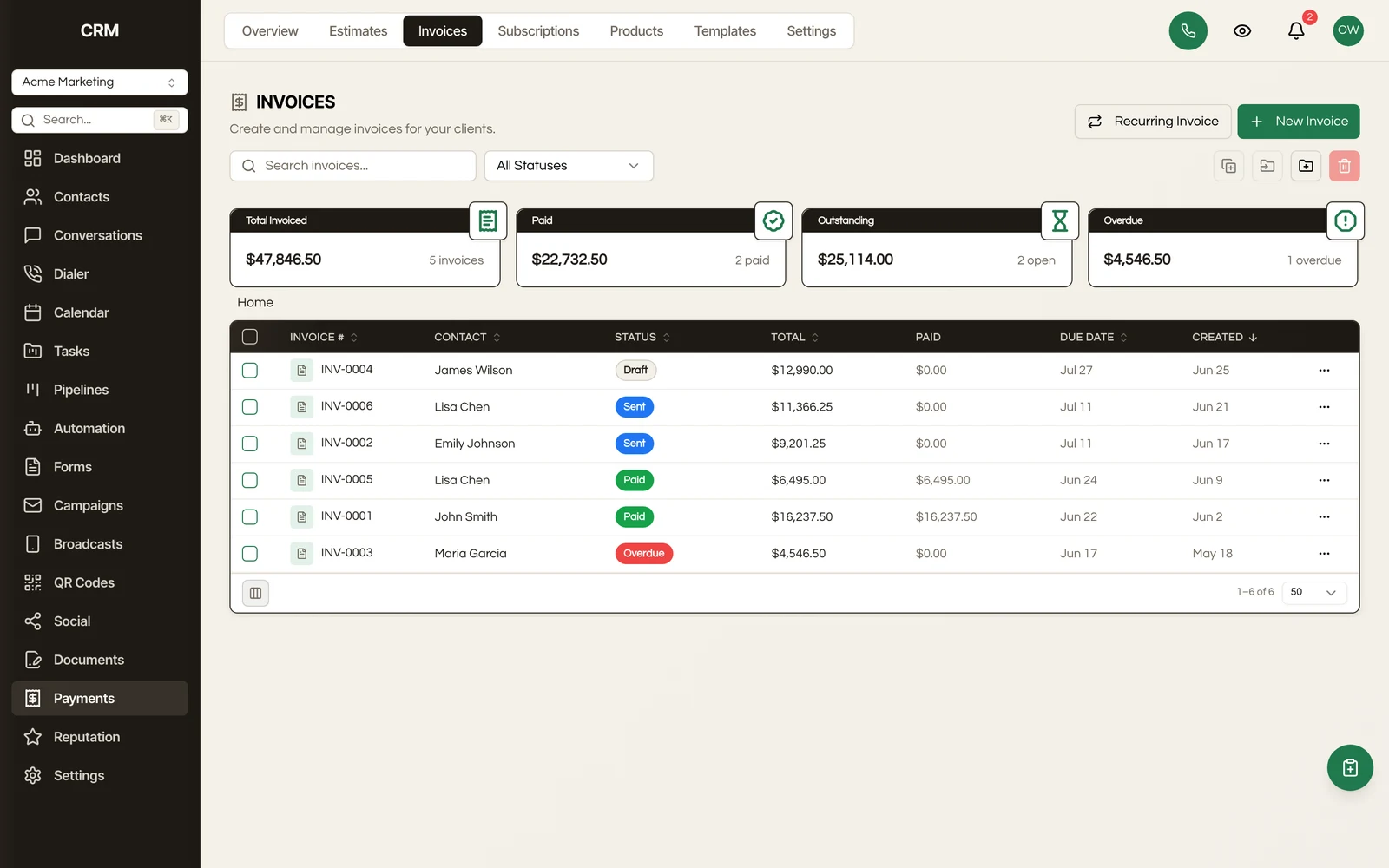
The invoices page shows all invoices with their number, contact name, amount, status, due date, and issue date. Filter by status, date range, or search by invoice number or contact name.
Creating an Invoice#
- Click New Invoice
- Select the Contact to bill
- Add Line Items:
- Search your product catalog to add existing products
- Or add custom line items with a description, quantity, and unit price
- Adjust quantity and pricing per line
- Apply discounts if needed
- Set the Due Date (or choose a payment term like Net 15, Net 30, Net 60)
- Add optional Notes (visible to the client) and Internal Notes (visible only to your team)
- Review the totals - subtotal, tax, discounts, and total
- Click Save as Draft or Send
Tax#
Configure tax rates in your settings. Tax is calculated automatically based on the rate and applied to the invoice total.
Invoice Statuses#
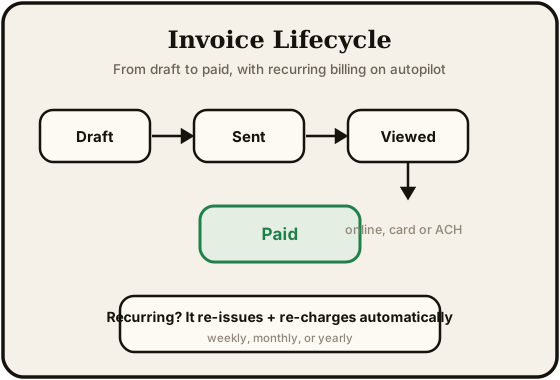
| Status | Meaning |
|---|---|
| Draft | Not yet sent - fully editable |
| Sent | Delivered to the client via email |
| Viewed | The client has opened the invoice |
| Paid | Payment received (manual or online) |
| Partially Paid | A partial payment has been received against the balance |
| Overdue | Past the due date without payment |
| Void | Cancelled - no longer valid |
Sending Invoices#
Click Send to email the invoice to the client. The email includes:
- Invoice details (number, amount, due date)
- A link to view the invoice online
- A Pay Now button (if Stripe is connected) for online payment
Online Payments#
If you have connected Stripe in Settings → Integrations, invoices include a payment link. When the client clicks Pay Now:
- They are taken to a secure payment page
- They enter their credit card details
- Payment is processed through Stripe
- The invoice is automatically marked as Paid
You do not handle card numbers directly - all payment processing is handled securely by Stripe.
Payments Recorded by Hand#
Cash, cheque, and bank transfers are recorded with Mark as paid. These land in the payments ledger like any other payment, so they count toward revenue reporting rather than sitting outside it as an invoice that simply changed status.
Refunds, Chargebacks, and Voids#
- A partial refund removes only the amount refunded. The rest of the invoice stays on the books and keeps counting toward revenue.
- A lost chargeback updates the invoice rather than leaving it reading as paid, so a disputed payment does not quietly stay in your revenue figures.
- Voiding is final. A payment arriving against a voided invoice does not bring it back to life.
- An invoice paid through a Stripe-hosted page reconciles back automatically and is marked paid on your side.
Bank Debits#
Bank payments (ACH, SEPA, Bacs) are only treated as paid once the money actually settles, not when the customer submits them. Expect a gap of a few days between the customer paying and the invoice reading Paid.
Pay Links#
An invoice's pay link is cleared when its checkout expires or the invoice is partly paid, so a customer following an old link cannot be charged a total that is no longer correct. Editing a sent invoice's amount issues a fresh link.
Deposits and Split Billing#
Take part of an invoice up front and bill the rest later. Splitting an invoice creates a linked deposit invoice for the percentage you choose, and the CRM drafts the balance invoice for the remainder automatically once the deposit is paid.
Requesting a Deposit#
- Open the invoice and click Request a deposit
- Enter the deposit percentage (between 1% and 99%) - the dialog shows the deposit amount it works out from the invoice total
- Click Create deposit invoice
The deposit invoice gets its own number (deposits use a dedicated DEP number sequence) and is linked to the original invoice, which becomes the parent of the pair. Send the deposit invoice like any other.
You can request a deposit on any invoice that has not been paid, partially paid, or voided - including an invoice created by a customer accepting an estimate, which arrives already sent rather than as a draft. An invoice carries at most one deposit at a time, and the CRM tells you if it already has one; deleting that deposit invoice lets you split again.
The Balance Invoice#
When the deposit invoice is paid in full, the CRM automatically drafts a balance invoice for what remains (the parent's total minus the deposit). It lands as a draft, carrying the parent's currency, due date, and terms, with a line item naming the invoice it balances - review it and send it when you are ready.
This happens no matter how the deposit was settled:
- Paid online by card
- A payment you record by hand (cash, cheque, bank transfer)
- The Mark as paid button
- The final instalment, when the deposit itself is split into scheduled payments
The balance invoice is drafted exactly once. A deposit that gets settled twice - say a card payment lands and someone in the office also marks it paid - does not produce a second balance invoice.
Payment Schedules (Instalments)#
Separately from deposits, the invoice editor's Payment Schedule section splits a single invoice's total into scheduled payments with their own amounts and due dates. Toggle it on and use a preset (a 50/50 deposit-and-balance split, or thirds), add your own instalments, or auto-split the total evenly; the instalment amounts must add up to the invoice total.
Using Seedly Dispatch?#
On a dispatch job, deposits work through the job's own Billing tab: set the location's billing rhythm to Multi-part packet, then use the Split into parts action on the draft invoice. See the Dispatch billing guide for how job billing packets work.
Estimates#
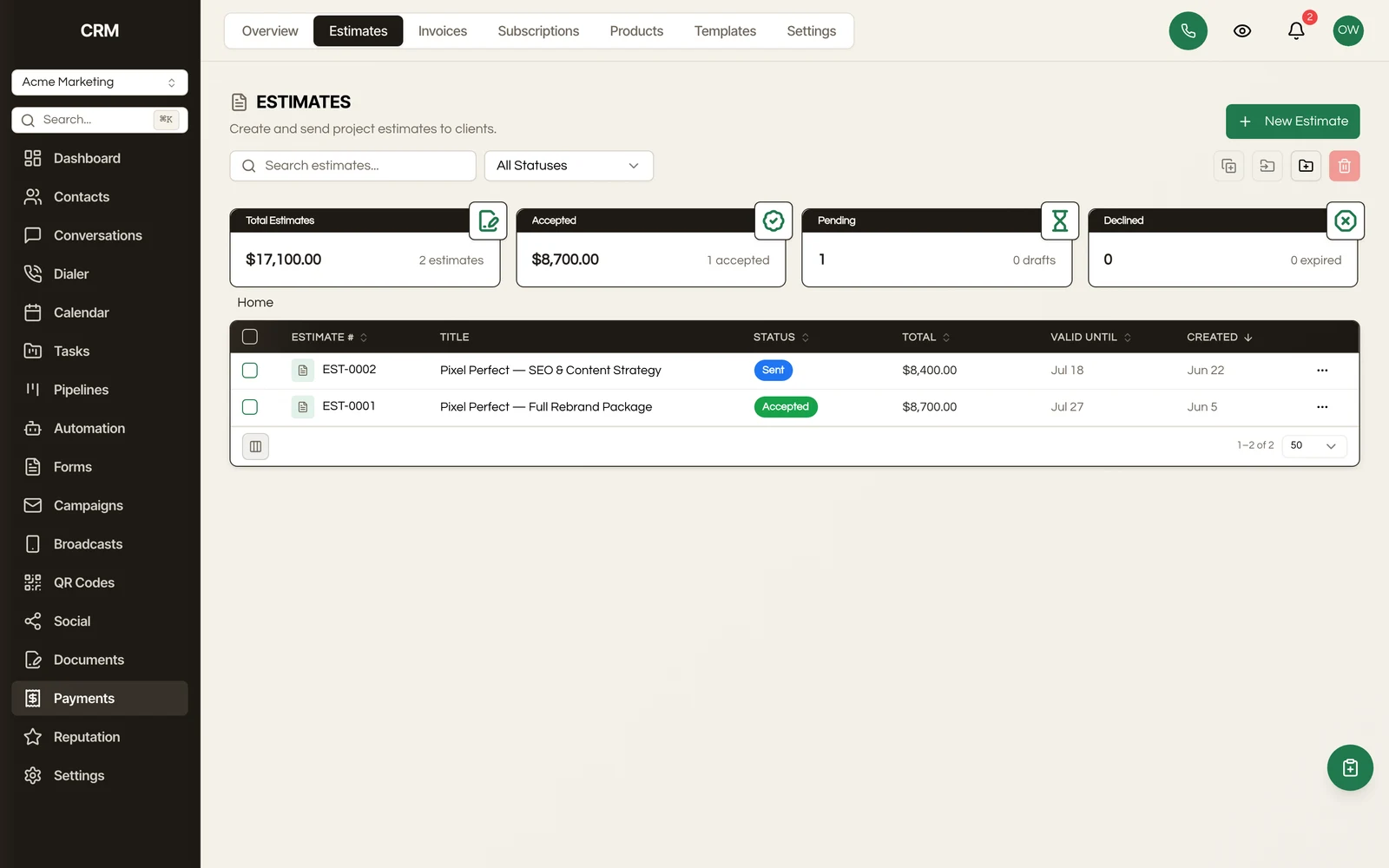
Estimates are proposals you send to clients before creating a formal invoice.
Creating an Estimate#
The process is the same as creating an invoice - add line items, set terms, and send. Estimates have their own number sequence.
Converting to Invoice#
Once a client approves an estimate, click Convert to Invoice to create an invoice pre-filled with the estimate's line items and details.
Recurring Invoices#
Set up invoices that are generated and sent automatically on a schedule.
Creating a Recurring Invoice#
- Go to the Recurring tab
- Click New Recurring Invoice
- Select the contact and add line items (same as a regular invoice)
- Set the Frequency - weekly, biweekly, monthly, quarterly, or yearly
- Set the Start Date and optionally an End Date
- Choose whether to auto-send or save as draft for review
- Click Save
How It Works#
At each interval, the system generates a new invoice from the template and either sends it automatically or saves it as a draft for your review, depending on your setting.
Products#
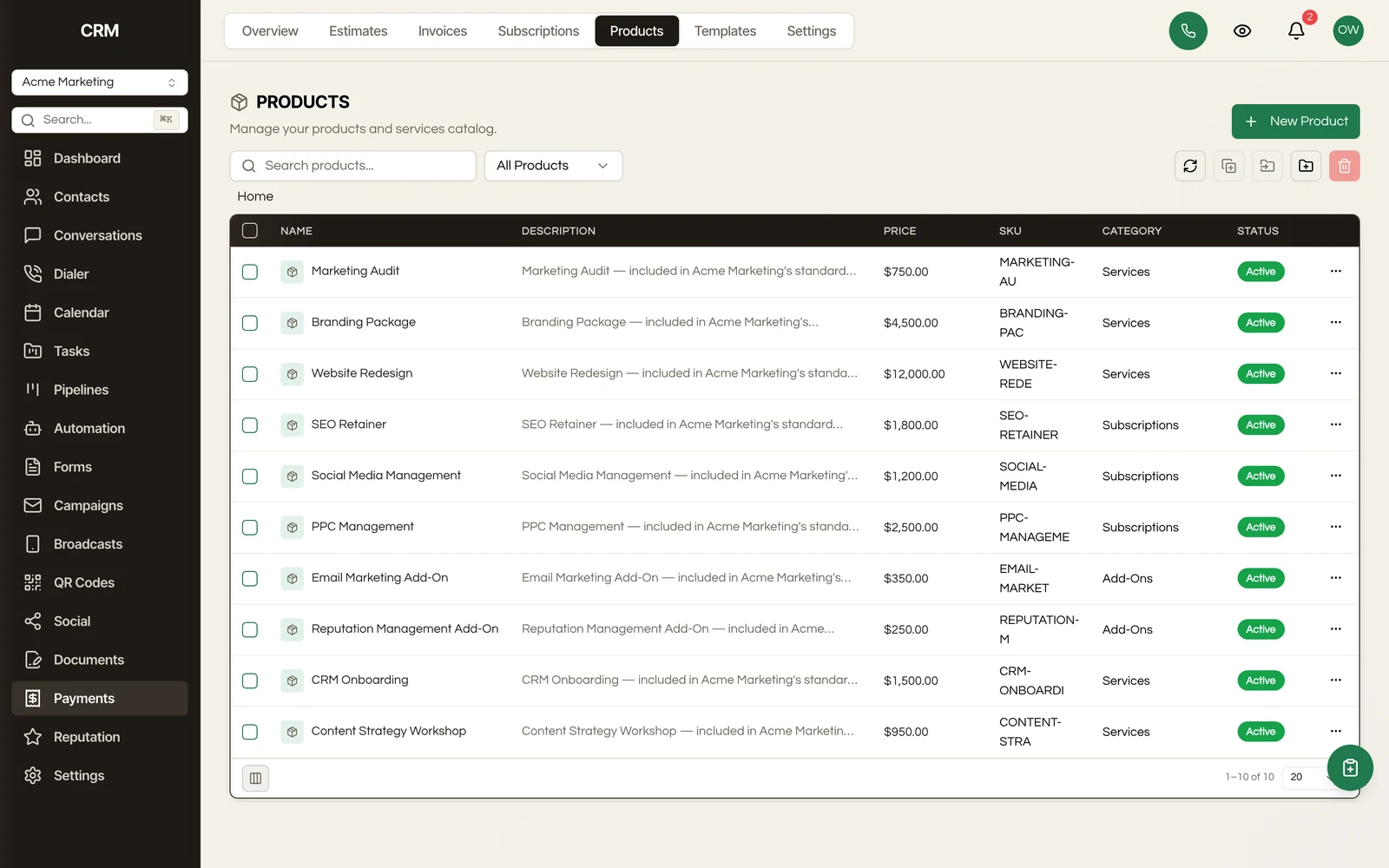
Products are reusable line items with a name, description, and default price.
Managing Products#
Go to Settings → Products to:
- Create products with a name, description, unit price, and optional tax rate
- Edit or delete existing products
- Organize products for easy lookup
When creating an invoice, search your product catalog to quickly add items without re-entering details each time.
Payment Terms#
Payment terms define when invoices are due. Common terms include:
- Due on receipt - Payment expected immediately
- Net 15 - Due 15 days after issue
- Net 30 - Due 30 days after issue
- Net 60 - Due 60 days after issue
Configure default payment terms in Settings → Payment Terms. You can override the default on individual invoices.
Summary#
| Feature | Detail |
|---|---|
| Invoice types | One-time invoices, estimates, and recurring invoices |
| Line items | Products from catalog or custom entries with quantity, price, and discounts |
| Statuses | Draft, Sent, Viewed, Paid, Partially Paid, Overdue, Void |
| Online payments | Stripe integration for credit card payments |
| Deposits | Split an invoice into a deposit, with the balance invoice drafted automatically when the deposit is paid |
| Estimates | Proposals that convert to invoices with one click |
| Recurring | Auto-generated invoices on a weekly, biweekly, monthly, quarterly, or yearly schedule |
| Products | Reusable catalog with default pricing |
| Payment terms | Due on receipt, Net 15, Net 30, Net 60 |