
Help Center
Documents
Create document templates, send contracts, and collect e-signatures from clients.
Last updated
Create document templates, send them to contacts, and collect e-signatures without leaving Seedly CRM.
Document List#
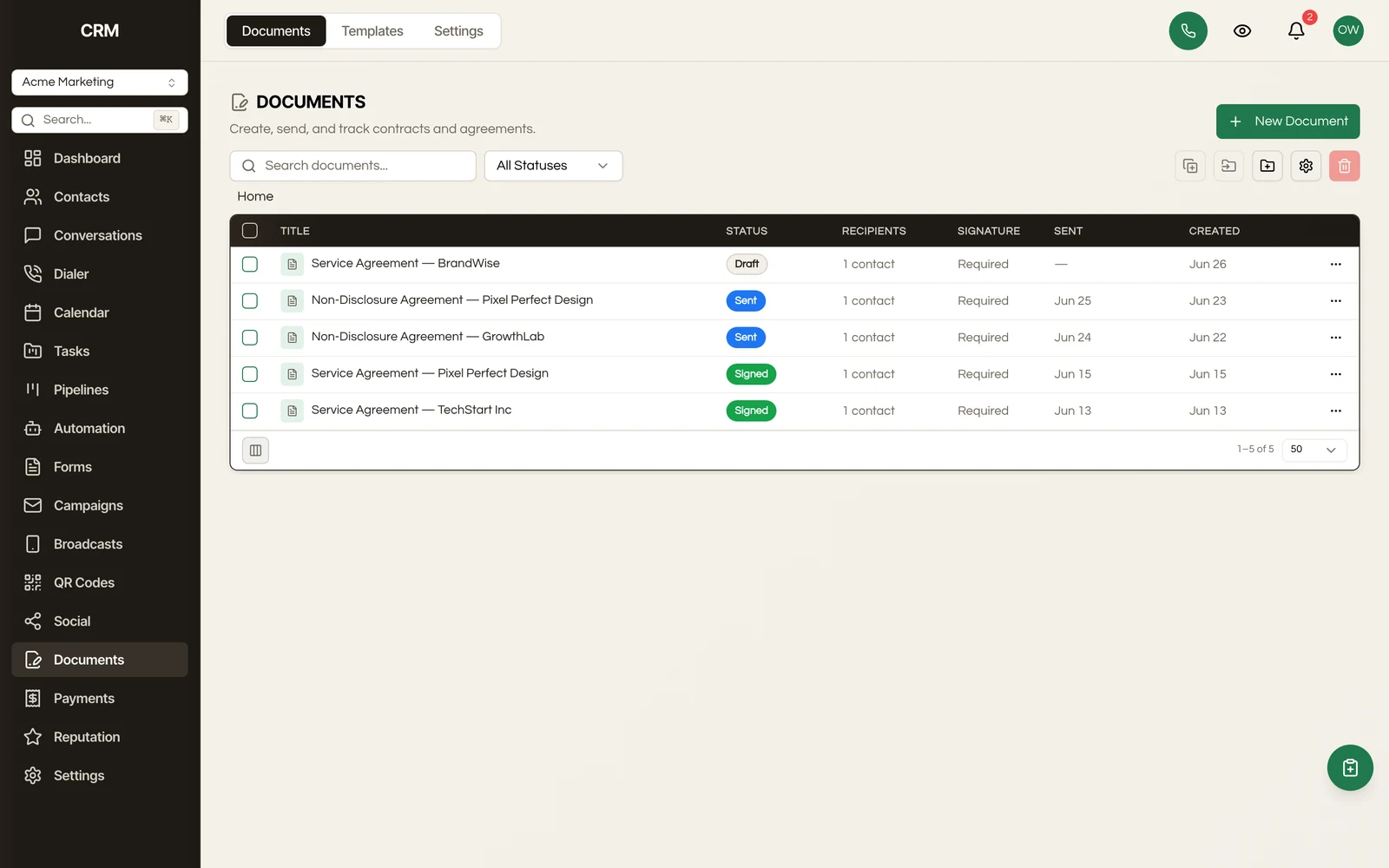
The documents page shows all your documents with their name, contact, status, and date. Filter by status or search by name.
Creating a Document#
- Click New Document
- Select a Template or start from a blank document
- Link the document to a Contact
- Fill in or customize the document content
- Click Save or Send
Templates#
Document templates define the structure and content of your documents. Create templates for common documents like contracts, proposals, NDAs, and agreements.
Templates support:
- Rich text - Formatted content with headings, lists, bold, and italic
- Merge fields - Insert contact data automatically (name, email, company, custom fields)
- Signature fields - Placeholder blocks where the signer will apply their signature
- Date fields - Auto-filled with the current date or signing date
Using Merge Fields#
Merge fields pull data from the linked contact record. When the document is sent, fields like {{contact.firstName}} are replaced with the actual contact data.
Sending a Document#
- Open the document
- Click Send
- The contact receives an email with a link to view and sign the document
The email includes:
- Document name and description
- A secure link to the signing page
- Your agency branding
E-Signatures#
How Signing Works#
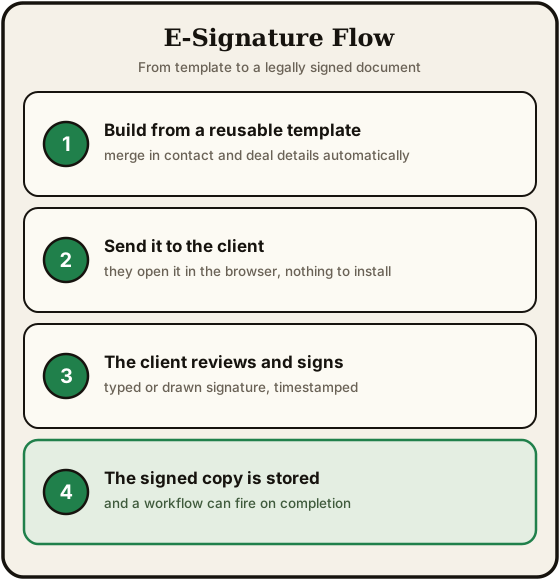
When the recipient opens the document link:
- They review the full document content
- They click each signature field to apply their signature (drawn or typed)
- They click Complete to finalize
- Both parties receive a signed copy
Signature Validation#
Each signature captures:
- The signer's name and email
- The date and time of signing
- A unique identifier for audit purposes
Where a document has several signers, each one's own signature image is stored against their signature, so a multi-party agreement shows who actually signed which field.
The Audit Certificate#
Every view and every signature is written into the document's audit certificate as it happens, with a timestamp, so the certificate reflects the full history rather than only the moment of signing. The certificate carries a content hash, which is what lets you show later that the document has not been altered since.
A declined document stays declined. It cannot be quietly restyled or re-opened into a signable state afterwards.
Collect on Sign#
If the document has a payment attached, the payment is recorded against the document when it is taken, so you never end up with a signature and a charge that do not reference each other.
Document Statuses#
| Status | Meaning |
|---|---|
| Draft | Not yet sent - editable |
| Sent | Delivered to the contact |
| Viewed | The contact has opened the document |
| Signed | The contact has completed all signature fields |
| Declined | The contact declined to sign |
| Expired | The document passed its expiration date before being signed |
Status changes are logged in the contact's activity timeline and can trigger workflows.
Tracking#
The documents list shows the current status of every sent document:
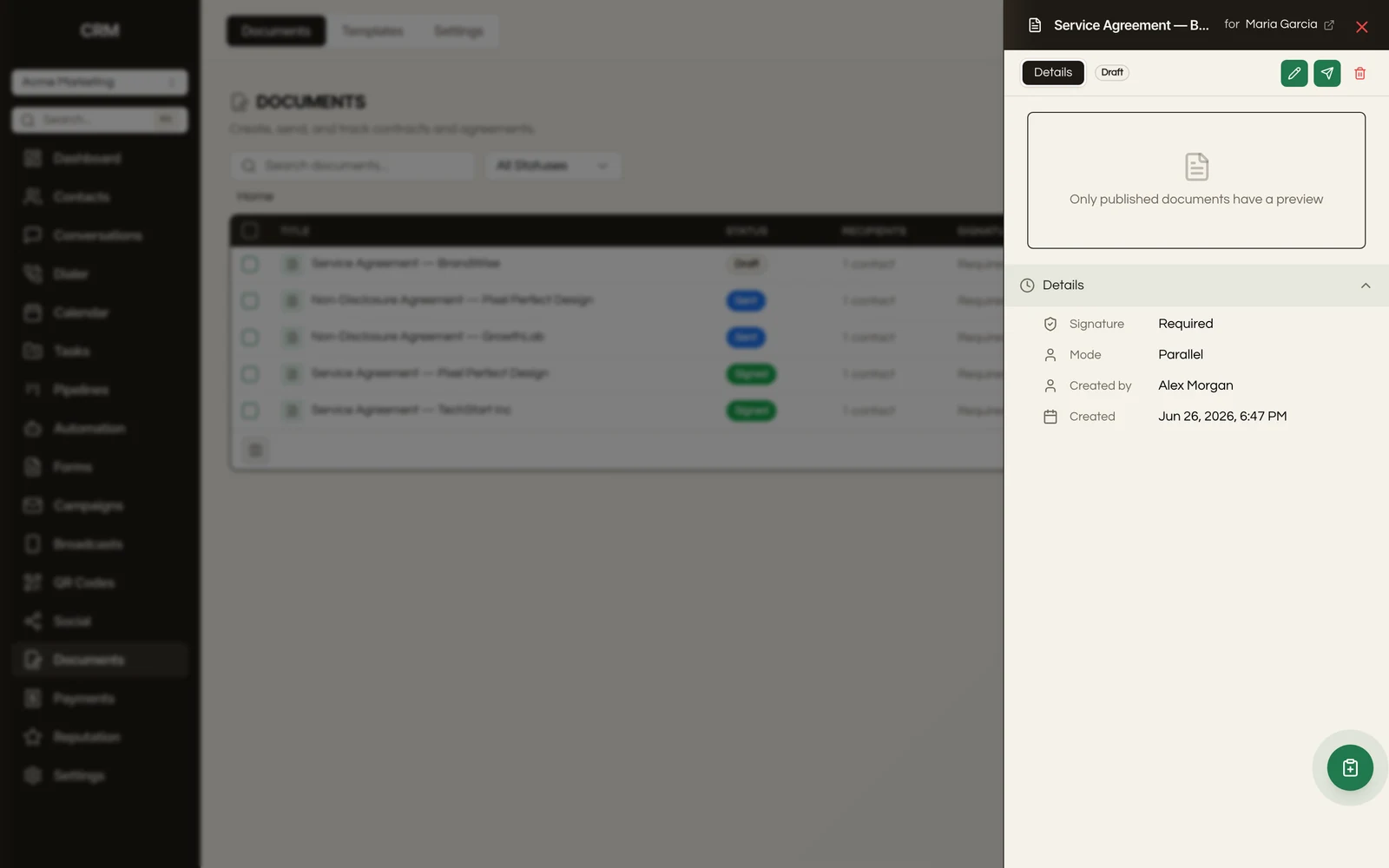
- Viewed indicates the contact has opened the link
- Signed confirms all signatures are complete
- Timestamps for each status change
Workflow Integration#
Document events can trigger automations:
- Document sent
- Document viewed
- Document signed
- Document declined
Use these triggers to send follow-up messages, update contact fields, or create tasks when a document reaches a specific status.
Summary#
| Feature | Detail |
|---|---|
| Templates | Reusable documents with merge fields and signature blocks |
| Merge fields | Auto-fill contact data (name, email, company, custom fields) |
| E-signatures | Legally binding signature collection via secure link |
| Statuses | Draft, Sent, Viewed, Signed, Declined, Expired |
| Tracking | Real-time visibility into whether documents are opened and signed |
| Workflow triggers | Automate follow-ups based on document status changes |