
Help Center
Ads
Monitor your Google Ads campaign performance and send conversions back to Google and Meta to optimize for real revenue.
Last updated
The Paid Ads dashboard connects your Google Ads account so you can monitor campaign performance alongside your contacts, opportunities, and revenue data. You can also send conversions back to Google and Meta (Facebook and Instagram), so the ad platforms optimize toward the leads and customers that actually convert.
Overview#
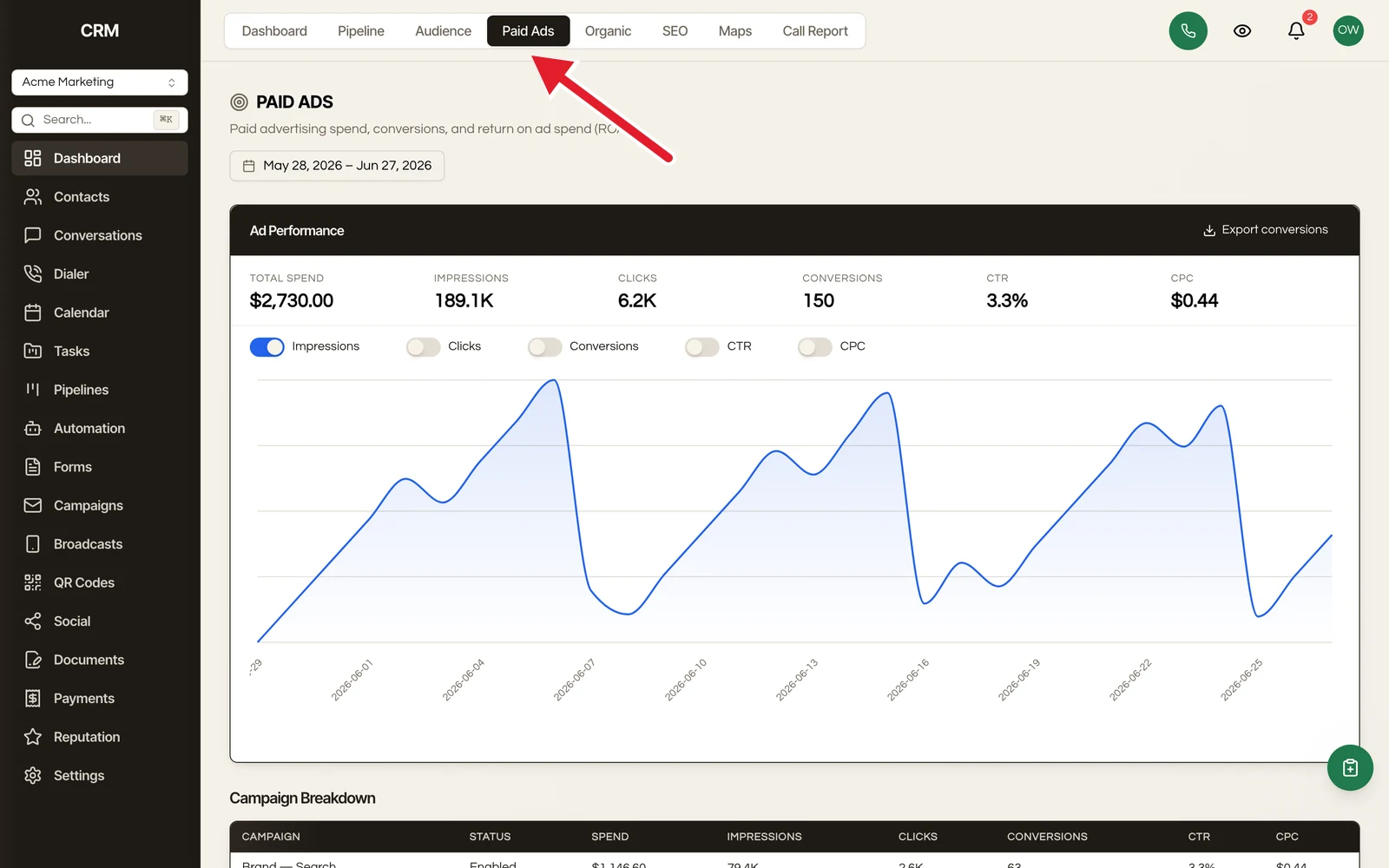
Paid Ads is a tab on your Dashboard. Once you connect Google Ads, campaign data flows into the CRM automatically. You can track spend, clicks, conversions, and ROI from a single screen - making it easy to see how your ad spend translates into pipeline and revenue.
Connecting Google Ads#
Before you can view ad data, connect your Google Ads account.
- Go to Settings → Integrations and connect Google (the same connection used for other Google services)
- Sign in with the Google account that manages your ads and grant the requested permissions
- Choose which Google Ads account to use (if you manage multiple)
- Open the Paid Ads tab on your Dashboard - your campaigns begin syncing within a few minutes
If reporting or conversions ever stop appearing, reconnect Google from Settings → Integrations to refresh the connection.
Ads Dashboard#
The Paid Ads tab provides an at-a-glance summary of your Google Ads performance.
Key Metrics#
| Metric | What It Measures |
|---|---|
| Spend | Total amount spent across all campaigns |
| Impressions | Number of times your ads were shown |
| Clicks | Number of clicks on your ads |
| CTR | Click-through rate (clicks divided by impressions) |
| Conversions | Actions completed by users after clicking (purchases, sign-ups, etc.) |
| CPC | Average cost per click |
Date Range#
Use the date picker to view performance for a specific time period. Compare against a previous period to see trends - metrics show percentage change indicators (up or down).
Charts#
The dashboard includes visual charts for:
- Spend over time - Daily or weekly ad spend as a bar chart
- Clicks and conversions - A line chart showing click and conversion trends
Google Ads#
The Google Ads section shows detailed data for your connected Google account.
Campaigns#
A table lists all your campaigns with:
- Campaign name and status
- Spend, impressions, clicks, CTR, conversions, and CPC
Click a campaign to drill down into its ad groups.
Ad Groups#
Each campaign contains one or more ad groups. The ad group view shows:
- Ad group name and status
- Spend, impressions, clicks, CTR, conversions, and CPC for that ad group
- A breakdown of the top keywords driving the spend
Key Metrics#
Spend, impressions, clicks, CTR, conversions, and CPC are shown for every campaign and ad group. Sort any column to quickly find your best or worst performers.
Conversion Tracking#
Conversion tracking closes the loop between your ad spend and your real results. Instead of optimizing toward clicks, you tell Google and Facebook which leads actually became customers, so the ad platforms learn to find more people like your best buyers.
How It Works#
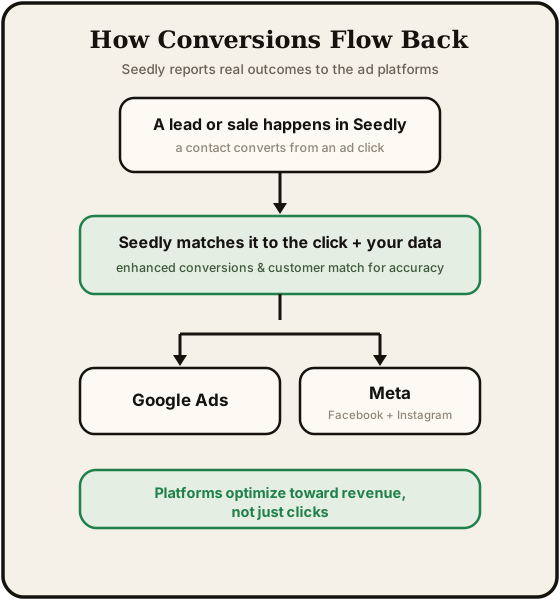
When someone clicks one of your ads and arrives at a tracked form or calls a tracked number, Seedly records the ad click behind the scenes. Later, when that lead takes a meaningful action, Seedly reports the result back to the ad platform, matched to the original click:
- A form submission
- A tracked phone call that lasts long enough to count as a real lead
- An invoice being paid
Because the conversion is tied back to the original ad click, the ad platform can credit the right campaign and optimize toward the outcomes that matter to you.
The Recommended Setup: Two Conversions#
For the clearest picture of what your ads are worth, track two separate conversions in your ad account:
| Conversion | Fires when | Value |
|---|---|---|
| Lead | A form is submitted or a tracked call qualifies | Optional or estimated |
| Customer Paid | An invoice is paid | The actual revenue |
With both in place, the ad platform can optimize toward real revenue, not just lead volume. Once you have a steady flow of paid customers, mark Customer Paid as your primary conversion so bidding targets return on ad spend.
How Revenue Is Credited#
The ad that produced the deal gets the credit, not whatever touch came last. When a payment arrives, it is attributed through the deal it belongs to, so a long sales cycle credits the campaign that actually started it rather than the last thing the customer happened to click.
Conversions are dated when the money moved, not when the automation that reported them happened to run. If a workflow reports a payment a day late, the conversion still lands on the day the customer paid, which is what keeps your ad-platform reporting lined up with your own revenue reporting.
The value sent is the real amount. A paid-revenue conversion carries the actual figure so the platform can optimize toward return on ad spend rather than a bare count.
Each conversion is reported once. A workflow that runs again over the same payment does not double-count it.
Turning It On#
There are three ways to send conversions, and you can use any combination:
- On a form - open the form builder, go to the Tracking tab, turn on conversion tracking, and choose the conversion to fire. This is the simplest option and covers the common case of counting every submission as a lead. No workflow required.
- In a workflow - add a Send Google Ads Conversion (or Send Meta Conversion) action to any workflow. Use this when you want to fire a conversion only under certain conditions, or with a dynamic value such as the invoice amount. Every new sub-account starts with a ready-made "Customer Paid" workflow you can switch on.
- On a tracked phone number - in a call tracking pool's settings, turn on conversion tracking and set how many seconds a call must last to count. Qualifying calls then report a conversion automatically.
Seedly keeps these separate so a single lead can safely trigger more than one without double-counting.
Setting Up Google Ads#
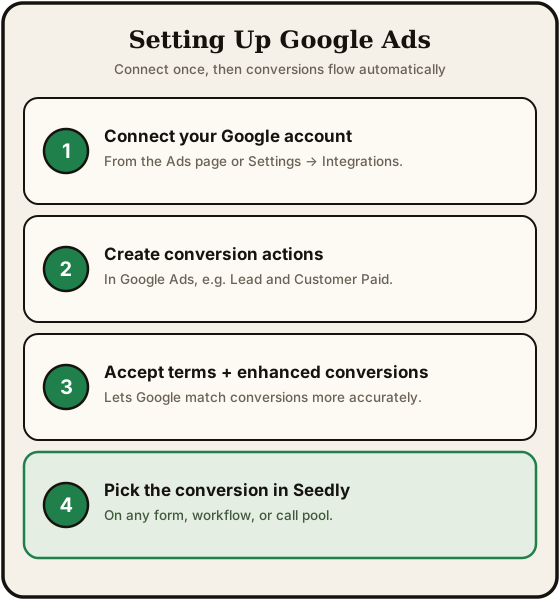
- Connect your Google account from the Ads page or Settings → Integrations.
- In Google Ads, create the conversion actions you want to use (for example, Lead and Customer Paid).
- In your Google Ads account settings, accept Google's customer-data terms and turn on enhanced conversions, which let Google match conversions more accurately.
- Back in Seedly, pick the matching conversion wherever you turn tracking on (form, workflow, or call pool).
Keeping conversions flowing: Google occasionally updates the permissions it requires to receive conversions. If your conversions stop appearing in Google Ads, reconnect Google from Settings → Integrations to refresh the connection.
More Accurate Matching#
Beyond the ad click, Seedly can also match conversions using your customers' contact details, so a sale still gets credited even when the click information is missing or expired. Customer details are protected before they are sent to the ad platform. This is the same idea Google calls enhanced conversions and Meta calls the Conversions API.
Exporting Conversions#
If you would rather upload conversions yourself, or you are still finishing setup, the Paid Ads dashboard has an Export conversions button. Choose a date range and download a file you can upload directly in Google's own tools.
Facebook (Meta)#
The same closed-loop works for Facebook and Instagram. Add a Send Meta Conversion step to a workflow (or enable Meta on a form's Tracking tab) and connect Meta in Settings → Integrations. Conversions are sent server-side and matched to your customers, which helps when browser-based pixels miss events.
Summary#
| Feature | Detail |
|---|---|
| Performance reporting | Google Ads, on the Paid Ads tab of your Dashboard |
| Connection | Connect Google from Settings → Integrations |
| Dashboard | Spend, impressions, clicks, conversions, CTR, and CPC |
| Date comparison | View any date range with period-over-period trend indicators |
| Google Ads | Campaign, ad group, and keyword drill-down |
| Conversion tracking | Send Lead and Customer Paid conversions to Google and Meta from forms, workflows, and tracked calls |
| Data sync | Automatic refresh so metrics stay current |