
Help Center
Workflows
Build visual automations with triggers, conditions, delays, and 80 action types.
Last updated
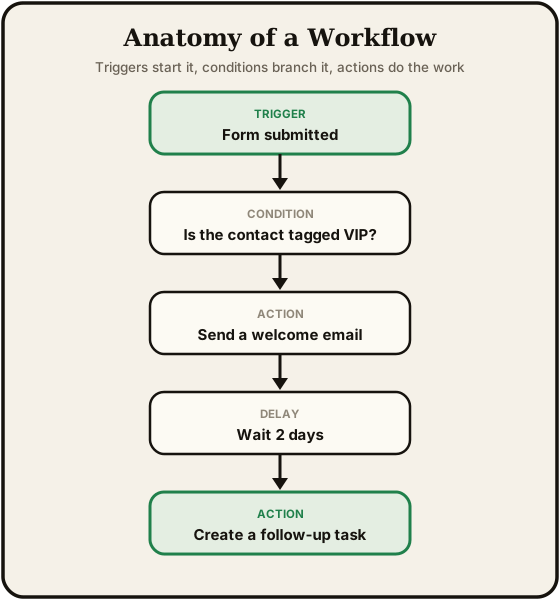
The Workflows module is a visual automation builder. You create workflows by connecting triggers, conditions, and actions on a drag-and-drop canvas. When an event occurs - like a new contact being created or a form being submitted - the workflow executes its steps automatically.
Workflow List#
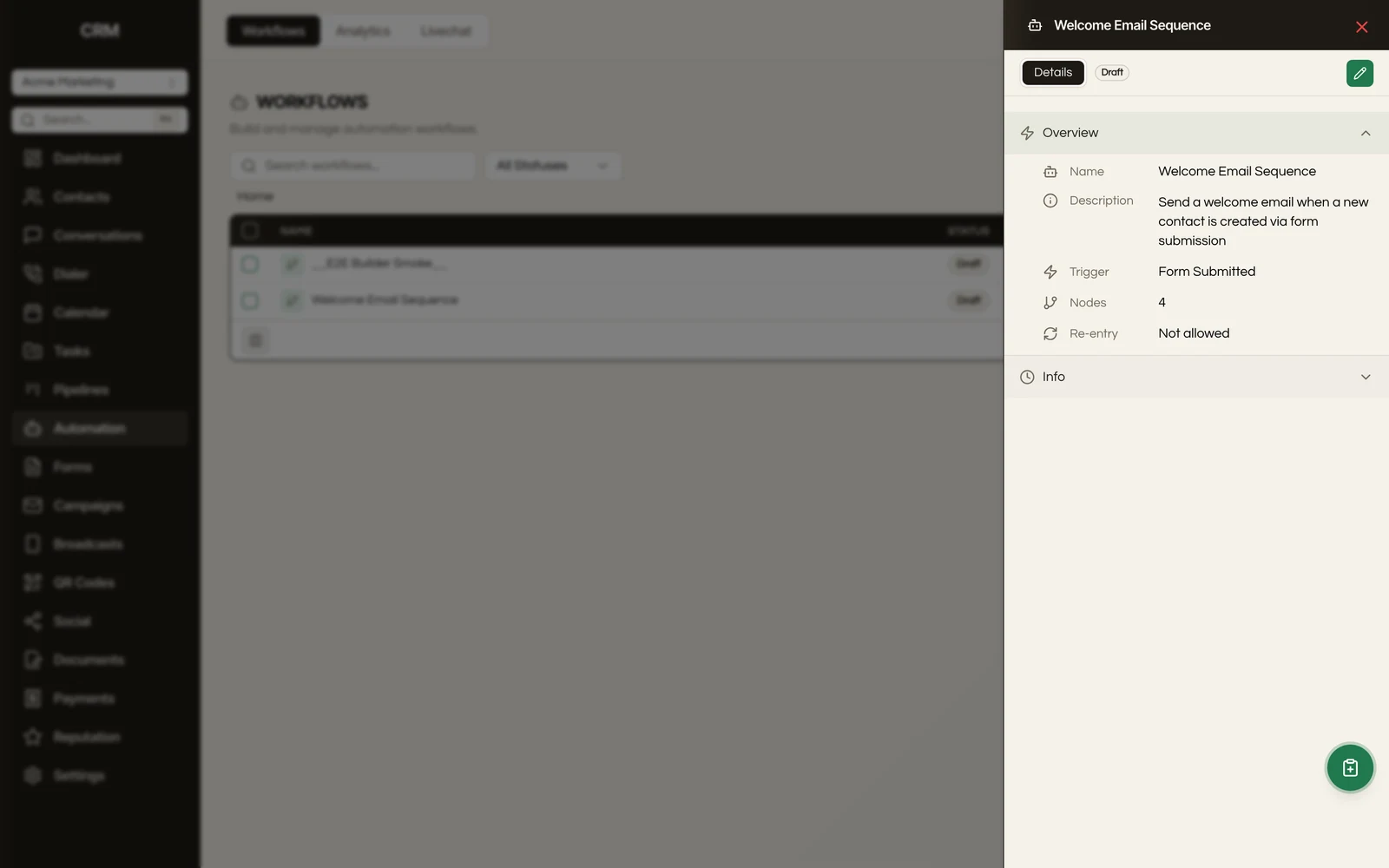
The workflows page shows all your automations with their name, status, trigger type, and description. Workflows can be organized into folders.
Statuses#
| Status | Meaning |
|---|---|
| Draft | Not yet active - edit freely, no contacts will be enrolled |
| Active | Live and executing - triggers fire and contacts are enrolled automatically |
| Paused | Temporarily stopped - no new enrollments, but in-progress contacts continue |
| Inactive | Deactivated - must be republished to activate |
Actions#
From the list, you can duplicate, move to a folder, or delete workflows. Select multiple workflows for bulk operations.
The Visual Builder#
Click Edit on any workflow to open the canvas. The builder has three main areas:
- Canvas (center) - Where you arrange and connect nodes visually
- Node palette (right panel) - Drag triggers and actions from here onto the canvas
- Configuration panel (right panel) - Appears when you click a node to configure it
Canvas Controls#
- Drag nodes to reposition them
- Connect nodes by dragging from an output port to an input port
- Zoom and pan using scroll and click-drag on the background
- Undo / Redo with Ctrl+Z and Ctrl+Shift+Z (up to 50 states)
- Delete a node by selecting it and pressing Delete
- Changes auto-save as you work
Triggers#
Every workflow starts with a trigger - the event that enrolls a contact. A single workflow can have as many as 20 of them. Click Add Trigger on the canvas to add another; it connects to the same first steps as the first trigger, and you can reconnect it to give it its own path. When one event matches more than one trigger, the contact is enrolled once, starting from the matching trigger that was added first. There are 76 triggers organized by category:
Contact Events#
- Contact created or updated
- Tag added or removed
- Do-Not-Disturb enabled
- Birthday or custom date reminder
- Contact replied to a message
- Note or task added
- Engagement score changed
- Lifecycle stage changed
Email Events#
- Email delivered, opened, clicked, or bounced
Pipeline Events#
- Opportunity created, updated, stage changed, or status changed
- Stale opportunity (no activity for a set period)
Form Events#
- Form submitted
Payment Events#
- Invoice created, sent, viewed, paid, or overdue
Document and Estimate Events#
- Document sent, viewed, signed, or declined
- Estimate created, sent, viewed, accepted, or declined
Appointment Events#
- Appointment booked, confirmed, cancelled, rescheduled, no-show, or completed
Call and Review Events#
- Call completed, missed, no-answer, or an outcome recorded
- Review received, review link clicked, or a positive/negative review left
Social and Ads#
- Lead form submissions from Facebook
- Comments on Facebook or Instagram posts
System Triggers#
- Inbound webhook (receive data from external systems)
- Scheduled (cron expression, recurring schedule, or one-time)
- Recurring segment (runs on a schedule for every contact in a saved segment)
- Contact date field matches today
Action Types#
After the trigger, add action nodes to define what the workflow does. There are 80 action types:
Communication#
Send messages across channels - email, SMS, voicemail drop, Facebook Messenger, Instagram DM. Send review requests, internal notifications, or Slack messages. Mark conversations as read or edit conversation properties.
CRM Actions#
Update, create, find, or delete contacts. Assign contacts to users. Add or remove tags and notes. Adjust engagement scores. Create tasks. Enable or disable Do-Not-Disturb.
Pipeline Actions#
Create, update, or remove opportunities. Find opportunities by criteria. Manage opportunity ownership and followers.
Logic and Flow#
Control the path contacts take through the workflow:
- Condition - Branch based on a single true/false evaluation (e.g., "Does email contain @gmail.com?")
- If/Else multi-branch - Evaluate multiple conditions with separate paths for each
- A/B split - Randomly distribute contacts between paths by percentage
- Wait - Pause for a set duration (seconds, minutes, hours, days, or weeks)
- Wait for reply - Pause until the contact responds, with an optional timeout
- Wait for condition - Pause until a field value changes
- Go To - Jump to another node in the workflow
- Set variable - Store a value for use in later nodes
Data Operations#
Transform data inline - math operations, text formatting, number formatting, and date/time formatting.
Integrations#
Connect to external systems - fire webhooks, create invoices, send documents, charge via Stripe, or connect through Zapier.
Workflow Management#
Enroll a contact in another workflow, remove from a workflow, or enroll in a campaign.
Conditions and Branching#
Condition nodes let you send contacts down different paths based on their data.
What You Can Evaluate#
- Any contact field (name, email, phone, company, custom fields)
- Engagement score
- Lifecycle stage
- Tags (has tag, does not have tag)
- Which trigger started the run (Trigger that started this run, offered once a workflow has more than one trigger)
Available Operators#
| Category | Operators |
|---|---|
| Text | Equals, contains, starts with, ends with, is any of, is none of |
| Empty checks | Is empty, is not empty, is set, is not set |
| Numeric | Greater than, less than, greater/less than or equal |
| Date | Before, after, on or before, on or after |
Branching#
A condition node has two outputs: Yes (condition met) and No (condition not met). Connect each output to the next step for that path.
The multi-branch node lets you define multiple conditions, each with its own output path, plus a default path for contacts that match none.
A check that has a field but no operator, or no value to compare against, cannot be published. To check that a field is blank, use Is Empty or Is Not Empty.
A/B Testing#
Split nodes randomly distribute contacts between paths based on percentages you define.
- Add up to 5 variants
- Set the percentage for each (must total 100%)
- Use the Distribute Evenly button to auto-balance
- The tracked variant tracks conversion so you can measure which path performs better
Delays and Waits#
| Node | What It Does |
|---|---|
| Wait | Pause for a fixed duration (e.g., 3 days, 2 hours) |
| Wait for reply | Pause until the contact responds on a specific channel, with an optional timeout |
| Wait for condition | Pause until a contact field changes to a specific value |
| Wait for link click | Pause until the contact clicks a link in a previously sent email |
| Wait for email event | Pause until an email is opened, clicked, or bounced |
Enrollment and Settings#
How Contacts Enter#
Contacts are enrolled automatically when the trigger event occurs. You can also manually enroll a contact using the Enroll Contact button in the toolbar.
Workflow Settings#
Click the gear icon in the toolbar to configure:
- Re-entry - Whether the same contact can enter the workflow more than once
- Time window - Restrict execution to specific hours and days of the week, in a specific timezone
- Exit conditions - Automatically stop the workflow for a contact if they reply or unsubscribe
- Communication defaults - Set the sender name, email address, and phone number for messages sent by this workflow
Testing a Workflow#
Before publishing, test your workflow to verify the logic:
- Click the test button (flask icon) in the toolbar
- Select a contact
- The workflow runs in test mode - no real messages are sent, but the execution is logged
- Check the Execution Logs to see which path was taken and whether each step succeeded
A test saves your latest edits first and runs the version on screen, including edits you have not published yet. When a workflow has more than one trigger, the test and Enroll Contact dialogs ask which one to start from under Start from.
Execution Logs#
Click the execution logs button (scroll icon) to see a history of every workflow run.
Each entry shows:
- Contact name
- Status (running, completed, failed, cancelled)
- Start time and duration
- Current node (if still running)
- Error details (if failed)
- The trigger that started the run, when the workflow has more than one
Expand an entry to see per-node results - which nodes executed, which were skipped, and how long each took.
Contact Path Highlighting#
Click the eye icon in the toolbar and enter an execution ID to highlight the exact path a contact took through the workflow on the canvas. This helps you visualize branching and debug unexpected behavior.
Publishing#
When your workflow is ready:
- Click Publish in the toolbar
- The workflow becomes Active - triggers fire and contacts enroll automatically
- To pause temporarily, click Pause - new enrollments stop, but in-progress contacts continue
- To deactivate, unpublish the workflow - it returns to Inactive status
Edits to a published workflow do not go live until you publish them. While an active workflow has unpublished edits, a Publish changes button appears in the toolbar; click it to put them live without switching the workflow off. Contacts already mid-execution continue on the version they started with.
Chat Widget#
The chat widget is an embeddable live chat component you can add to your website. Visitors start conversations directly from your site, and those conversations flow into the unified inbox alongside SMS, email, and social messages.
Configuring Appearance#
Navigate to Automation → Live Chat tab to customize the widget:
- Brand color - Set the primary color for the chat bubble and header to match your website
- Position - Choose whether the widget appears in the bottom-left or bottom-right corner
- Welcome message - Write the greeting visitors see when they open the chat window
- Avatar - Upload a photo or logo that displays in the chat header
Installation#
After configuring the widget, copy the provided embed code snippet and paste it into your website's HTML, just before the closing </body> tag. The snippet loads asynchronously and does not affect page performance.
If your site uses a CMS or page builder, paste the snippet into the custom code or footer injection area.
How Conversations Flow In#
When a visitor sends a message through the chat widget, a new conversation appears in the Conversations inbox with a live chat channel indicator. Your team can reply in real time from the inbox. If no one is online, the visitor sees an away message and can leave their contact information for follow-up.
Chat conversations support the same features as other channels - assignments, internal notes, snoozing, and SLA tracking all apply.
Summary#
| Capability | Detail |
|---|---|
| Triggers | 76 event types across contacts, email, pipelines, forms, payments, appointments, and more |
| Actions | 80 node types for communication, CRM, logic, data, and integrations |
| Branching | Single condition, multi-branch, and A/B split nodes |
| Delays | Fixed duration, wait for reply, wait for condition, wait for email event |
| Testing | Test mode with logged execution, contact path highlighting |
| Enrollment | Automatic via triggers or manual via toolbar button |
| Settings | Re-entry rules, time windows, exit conditions, sender defaults |
| Auto-save | Changes save automatically as you work |