Help Center
Notifications
Stay on top of assignments, updates, and activity with in-app notifications, email digests, and SMS alerts.
Last updated
The notification system keeps you informed about important events across the CRM - new conversation assignments, deal stage changes, form submissions, and more.
Notification Bell#
The bell icon in the top navigation bar shows your unread notification count. Click it to open a popover with your most recent notifications.
Each notification shows:
- Unread indicator - a filled dot on the left for unread items
- Title and body - a brief description of what happened
- Timestamp - relative time (e.g., "2 hours ago")
From the popover you can:
- Click a notification to mark it as read and navigate to the related record (contact, conversation, deal, etc.)
- Mark all read to clear all unread notifications at once
- View all notifications to open the full notifications page
Notifications Page#
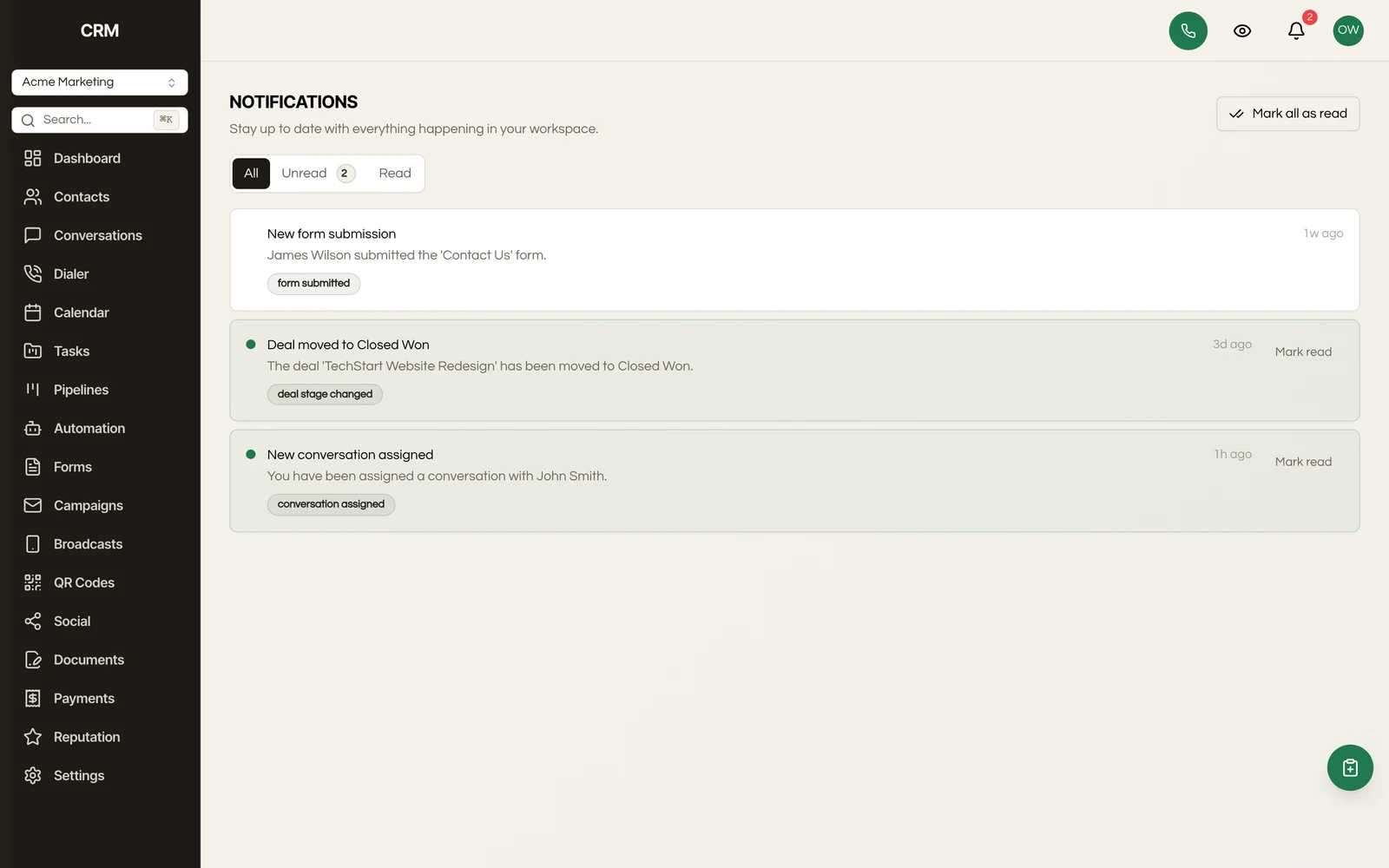
The full notifications page is available from the popover link or by navigating to the Notifications section in the sidebar.
Filtering#
Three tabs let you filter the list:
| Tab | Shows |
|---|---|
| All | Every notification |
| Unread | Only unread notifications (badge shows count) |
| Read | Only previously read notifications |
Actions#
- Click any notification to mark it as read and navigate to the linked record
- Mark read button on individual notifications (without navigating away)
- Mark all as read button in the header to batch-clear everything
Notifications are paginated with 20 items per page. Use the Previous and Next buttons to browse older notifications.
Notification Types#
You receive notifications for events such as:
| Notification | Example | Where it reaches you |
|---|---|---|
| Assignments | A conversation or task assigned to you | In-app + email |
| Mentions | A teammate @mentions you in a note | In-app + email |
| New activity | A form submission, booking, or payment | In-app |
| SLA alerts | A conversation nearing its reply deadline | In-app + email |
| Google Ads conversion tracking | An offline conversion upload stopped working (revoked OAuth, deleted conversion action, or a Google-side change) | In-app banner on the Google Ads settings page + email |
| Digests | A daily summary of your day |
- New message - a new inbound message arrived in a conversation
- New deal - an opportunity was created
- Deal won / lost - an opportunity was marked won or lost
- Mention - a teammate @mentioned you in an internal note
- New contact - a contact was added
- Form submission - a contact submitted one of your forms
- Appointment booked / cancelled - an appointment was scheduled or cancelled
- Invoice paid / overdue - an invoice payment was received or an invoice went overdue
- Document signed - a document was signed
- Review received - a new review came in
- Task assigned - a task was assigned to you
- Daily Task Summary - one alert each morning listing your overdue tasks and tasks due in the next 24 hours
- Missed call / voicemail - you missed a call or a voicemail was left
- Google Ads conversion health - conversion uploads to Google Ads stopped succeeding, surfaced as a banner on the Google Ads settings page pointing at what broke
Each notification includes a link to the related record so you can take action immediately.
Notification Preferences#
You can control which notifications you receive and how they're delivered. Go to Settings → Notifications to configure:
Channels#
For each event type, you can toggle:
- In-app - appears in the notification bell
- Email - sent to your account email
- SMS - sent to your phone number (if configured)
Digest Mode#
Instead of receiving individual email notifications, you can batch them:
| Mode | Behavior |
|---|---|
| Instant | Each notification sends an email immediately |
| Hourly | Notifications are bundled and sent once per hour |
| Daily | Notifications are bundled and sent once per day |
Digest mode only affects email delivery. In-app notifications always appear in real time.
Quiet Hours#
Set a time range during which notifications are held and delivered afterward. Useful for avoiding after-hours alerts. Quiet hours apply to immediate email and SMS delivery - in-app notifications still appear.
Real-Time Updates#
Notifications update in real time. When a new notification arrives, the bell badge count updates immediately without refreshing the page. The same applies to the full notifications page - new items appear automatically.