
Help Center
Pipelines & Opportunities
Track deals through visual kanban boards - manage stages, products, scoring, and win/loss tracking.
Last updated
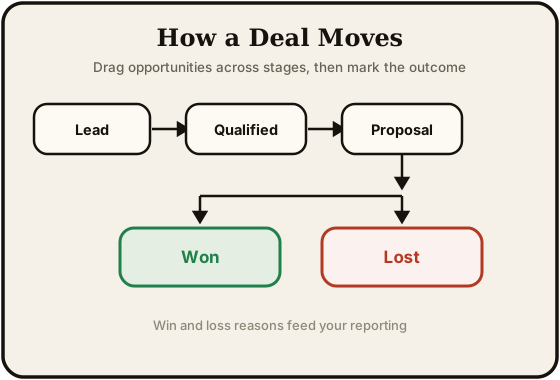
Pipelines let you track opportunities (deals) as they move through your sales process. Each pipeline has stages arranged as columns on a kanban board, and opportunities are cards you drag between stages.
Pipelines Overview#
A pipeline represents a sales process - for example, "New Client Onboarding" or "Upsell Pipeline." Each pipeline has its own set of stages and its own board view.
Creating a Pipeline#
- Click New Pipeline
- Enter a name
- Add stages - give each stage a name and, optionally, a win probability percentage used for weighted forecasting
- Reorder stages by dragging them
- Click Save
Stage Settings#
Each stage can be configured with:
| Setting | Purpose |
|---|---|
| Name and color | The label and color for the stage column |
| Win probability | A 0-100% likelihood of closing, used to calculate weighted (forecast) revenue for deals in that stage |
| Closing stage | Mark a stage as a closing stage - opportunities here are at the end of the process and do not advance further |
| Required fields | Fields that must be filled in before an opportunity can advance out of the stage |
| Stale threshold | Flag opportunities that sit in the stage too long without activity |
Arrange your active stages in order and place closing stages at the end. Separately, each opportunity carries a status - Open, Won, Lost, or Abandoned - that records its outcome.
The Kanban Board#
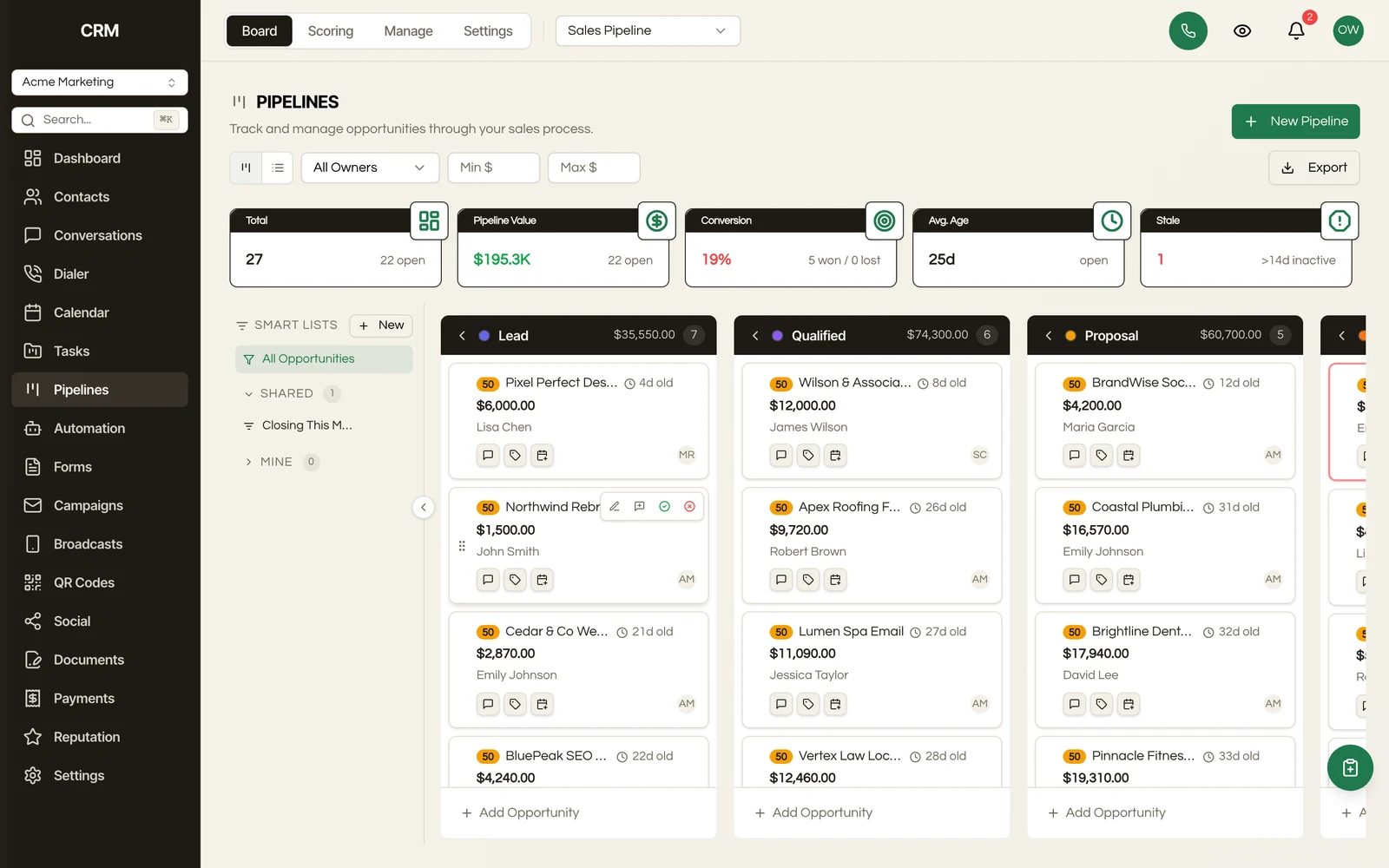
The default view is a kanban board where each stage is a column and each opportunity is a card.
Opportunity Cards#
Each card shows:
- Contact name
- Opportunity name
- Value (dollar amount)
- Assigned user
- Engagement score indicator
- Age (how long the opportunity has been in the pipeline)
Moving Opportunities#
Drag a card from one column to another to move it to a different stage. The stage history is automatically recorded.
When you drag an opportunity to a Won or Lost stage, you may be prompted to enter additional details (close reason, notes).
Board vs. List View#
Toggle between:
- Board view - Kanban columns (default)
- List view - Table with sortable columns for bulk operations
Creating an Opportunity#
- Click New Opportunity (or the + button on a stage column)
- Fill in the details:
| Field | Required | Description |
|---|---|---|
| Name | Yes | Opportunity title |
| Contact | Yes | The contact this opportunity is for |
| Pipeline | Yes | Which pipeline to add it to |
| Stage | Yes | Starting stage |
| Value | No | Expected deal value |
| Assigned to | No | Team member responsible |
| Expected close date | No | Target close date |
| Source | No | Where the lead originated |
- Click Create
Opportunity Detail#
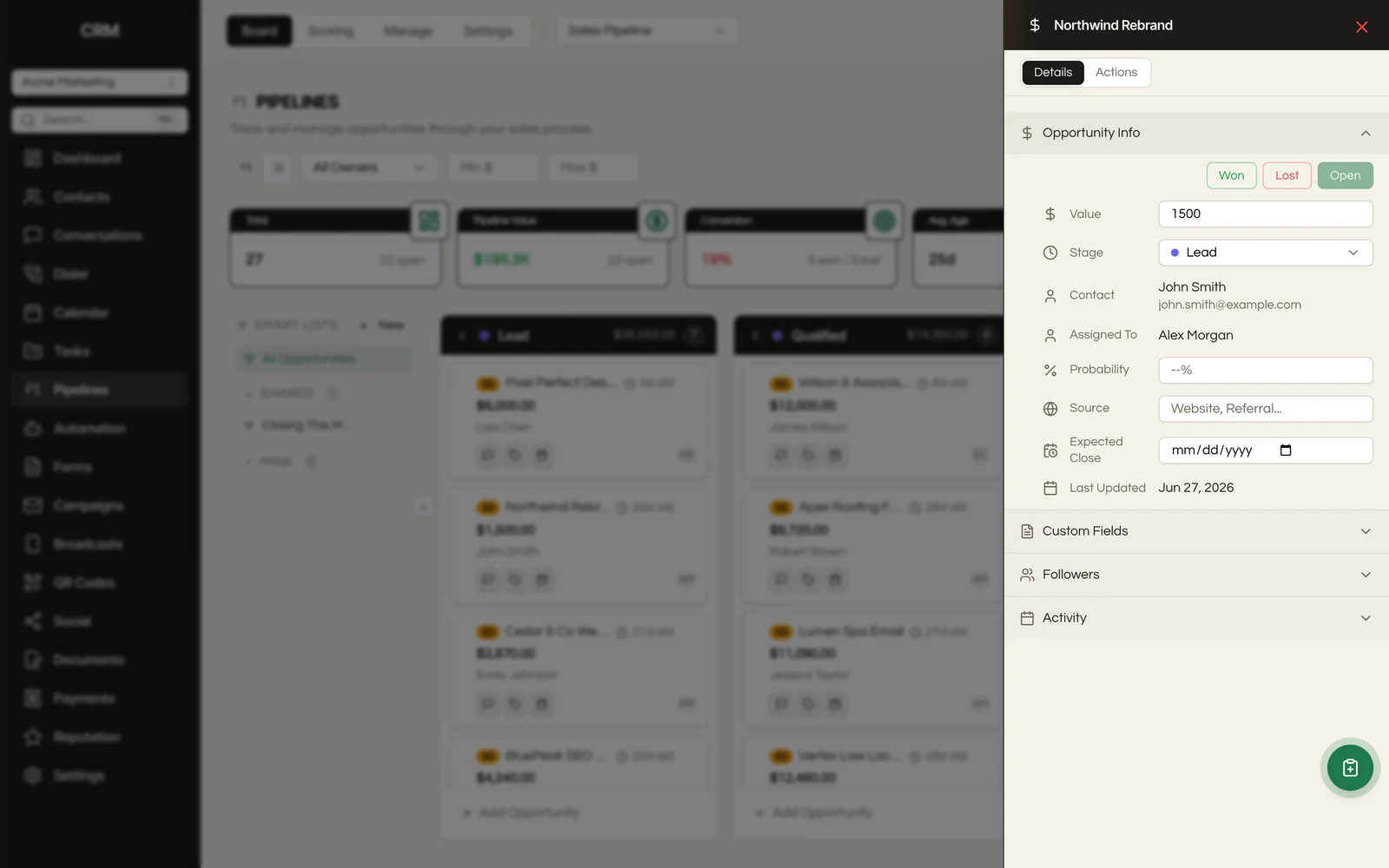
Click an opportunity card to open its detail view. You will find:
Fields#
All the fields listed above, plus custom fields configured in your settings. Edit fields inline by clicking on them.
Products#
Add products to an opportunity to track what is being sold:
- Search your product catalog or add a custom line item
- Set quantity and unit price per product
- Discounts can be applied
- Total value updates automatically based on products
Notes#
Add notes to an opportunity for internal context. Notes are visible to your team and appear in the activity timeline.
Activity Timeline#
A chronological log of everything that has happened with this opportunity - stage changes, field updates, notes added, emails sent, and more.
Scoring#
Opportunities have an engagement score that reflects how active the deal is. Scores are categorized:
| Tier | Score Range | Meaning |
|---|---|---|
| Hot | 76-100 | Highly engaged, likely to close |
| Warm | 51-75 | Active engagement |
| Cool | 26-50 | Some engagement |
| Cold | 0-25 | Low engagement, may need attention |
Win/Loss Tracking#
Winning a Deal#
When you mark an opportunity as Won (set its status to Won, or move it to a closing stage):
- The close date is recorded
- The opportunity is marked as closed
- Revenue from the deal is added to your pipeline reporting
Losing a Deal#
When you mark an opportunity as Lost or Abandoned:
- You can optionally enter a loss reason
- The opportunity is marked as closed
- It remains visible for reporting and can be reopened
Reopening#
A closed opportunity can be moved back to an open stage if circumstances change.
Filtering and Sorting#
Filters#
Filter opportunities by:
- Assigned user
- Stage
- Value range
- Expected close date range
- Tags
- Source
- Custom field values
Sorting#
In list view, sort by any column - name, value, stage, close date, created date, or last updated.
Bulk Actions#
In list view, select multiple opportunities to:
- Move to a different stage
- Assign to a user
- Add or remove tags
- Delete
Pipeline Settings#
Each pipeline can be configured with:
- Name and description
- Stages - add, remove, rename, reorder, and set types
- Default assigned user - auto-assign new opportunities
- Scoring rules - customize how engagement scores are calculated for this pipeline
Summary#
| Feature | Detail |
|---|---|
| Views | Kanban board and list view |
| Stages | Configurable name, color, win probability, closing-stage flag, required fields, and stale threshold |
| Opportunity status | Open, Won, Lost, Abandoned |
| Opportunity fields | Name, contact, value, stage, assigned user, close date, source, custom fields |
| Products | Line items with quantity, price, and discounts |
| Scoring | Hot (76+), Warm (51-75), Cool (26-50), Cold (0-25) |
| Activity | Full timeline of stage changes, field updates, notes, and communications |
| Bulk actions | Stage change, assignment, tagging, deletion |