
Help Center
Conversations & Inbox
Manage all client communications - SMS, email, Gmail, Messenger, Instagram, social DMs, web chat, and voice - from one unified inbox.
Last updated
The Conversations module is a unified inbox where all your client communications come together. SMS, email, Gmail, Facebook Messenger, Instagram DMs, social media DMs, web chat, and voice calls all appear in one place, so your team never has to switch between apps.
Gmail messages are synced one-way into the CRM - your Gmail inbox is never modified by actions taken here. See the Gmail integration guide for details.
Inbox Layout#
The inbox is split into three panels:
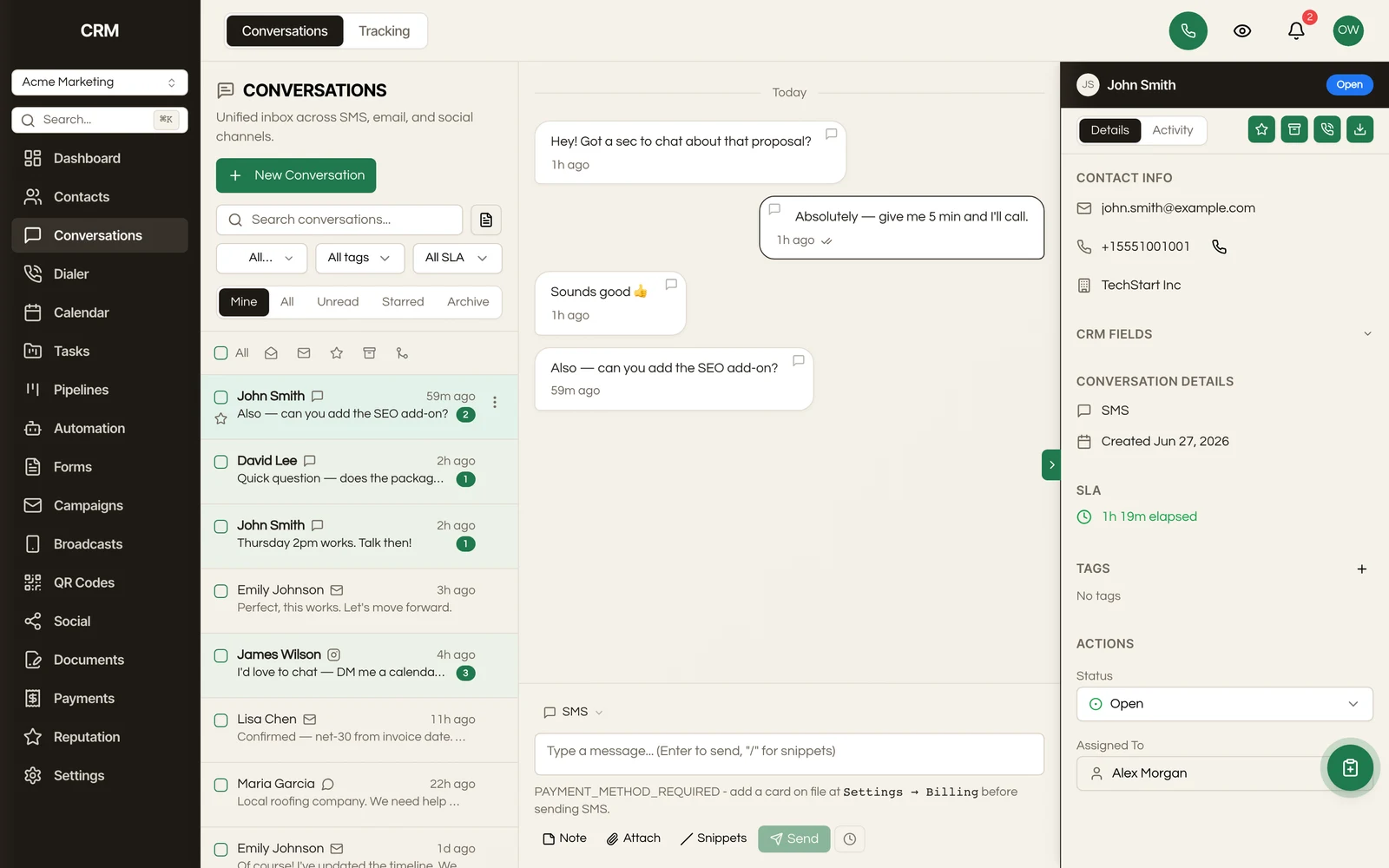
- Left panel - Conversation list with search, filters, and tabs
- Center panel - Message timeline for the selected conversation
- Right panel - Contact details, tags, assignments, and actions
Conversation List#
Each conversation in the list shows:
- Contact name and avatar
- Channel icon (SMS, email, Messenger, Instagram, etc.)
- Last message preview (truncated)
- Time since last message
- Unread message count badge
Filtering and Tabs#
Use the tabs at the top to filter conversations:
| Tab | What It Shows |
|---|---|
| Mine | Conversations assigned to you |
| All | All conversations in the sub-account |
| Unread | Conversations with unread messages |
| Starred | Conversations you have favorited |
| Archived | Conversations removed from the main list |
Additional filters:
- Channel - Show one channel, such as SMS, Email, Gmail, Messenger, Instagram or CallRail, or All channels. On a phone the filter also offers Social DM, Live Chat and Phone Calls. A conversation that holds both calls and texts is listed under SMS
- Tags - Filter by conversation tags
- SLA - Filter by response time status (at risk, breached)
Searching#
The search bar filters conversations by contact name, email, or phone number. Toggle Search messages to search within message content instead.
Search runs across your whole conversation history, not only the conversations currently loaded in the list, so an old thread is found without scrolling back to load it first. The list itself loads in pages as you scroll rather than fetching everything at once, which is what keeps it quick on an account with a long history and a large team.
Unread counts are tracked per person, so your badge reflects what is unread for you and stays accurate no matter how many people share the sub-account.
Bulk Actions#
Select multiple conversations using checkboxes, then:
- Mark as read or unread
- Star or unstar
- Archive
Message Timeline#
Messages are displayed chronologically with the newest at the bottom. The timeline auto-scrolls when new messages arrive.
Message Types#
- Inbound messages (from the contact) appear on the left with a light background
- Outbound messages (from your team) appear on the right with a colored background
- Internal notes appear centered with a yellow background and a label indicating they are only visible to your team
- Calls appear in the timeline with their direction, outcome, and duration. A contact's calls and texts are one conversation, including the texts the CRM sends for you: workflow texts, auto-replies, bulk SMS, SMS campaigns, and review requests you send from the Reputation page. A reply you type to a call stays in the thread you are reading. Email, Gmail, Messenger, Instagram, social DMs, web chat, and form submissions keep their own conversations, and each email campaign keeps its own thread
Delivery Status#
Outbound messages show status indicators:
| Icon | Meaning |
|---|---|
| Clock | Pending / queued |
| Single check | Sent |
| Double check | Delivered |
| Eye | Read by recipient |
| X | Failed to deliver |
Email Features#
Email messages display the subject line, CC/BCC recipients, and file attachments. You can toggle between the formatted HTML view and plain text. Tracked emails show open and click counts.
Scheduled Messages#
Messages scheduled for later appear with a dashed border, clock icon, and the scheduled send time. You can cancel a scheduled message before it sends.
Composing Messages#
Writing a Message#
Type your message in the composer at the bottom of the center panel. Press Enter to send (Shift+Enter for a new line).
For email, the composer includes a subject line, CC/BCC fields, and a rich text editor with formatting options (bold, italic, links, lists).
For SMS, a character counter shows how many segments your message will use.
Switching Channels#
The composer shows which channel you are replying on (SMS, Email, Gmail, Messenger, or Instagram). Click the channel indicator to switch - for example, to follow up on an SMS conversation with an email instead.
File Attachments#
Click the attach button (paperclip icon) or drag and drop files into the composer. Attachments show as chips with a remove button.
Message Snippets#
Type / followed by a snippet name to insert a saved template. Snippets can include merge fields like {{firstName}} that are replaced with the contact's information.
Manage your snippets from the Snippets tab in the right panel - create new ones, edit existing ones, and organize them into folders.
Scheduling a Message#
Click the schedule button (clock icon) to pick a date and time for the message to send later, instead of immediately.
Internal Notes#
Internal notes are messages visible only to your team - the contact never sees them.
Adding a Note#
- Click the Note button in the composer toolbar
- The composer highlights in yellow to indicate note mode
- Type your note
- Click Save note
Mentioning Team Members#
In note mode, type @ followed by a name to mention a team member. They receive a notification about the mention. This is useful for flagging conversations that need attention or asking a colleague to follow up.
Assignments#
Assigning a Conversation#
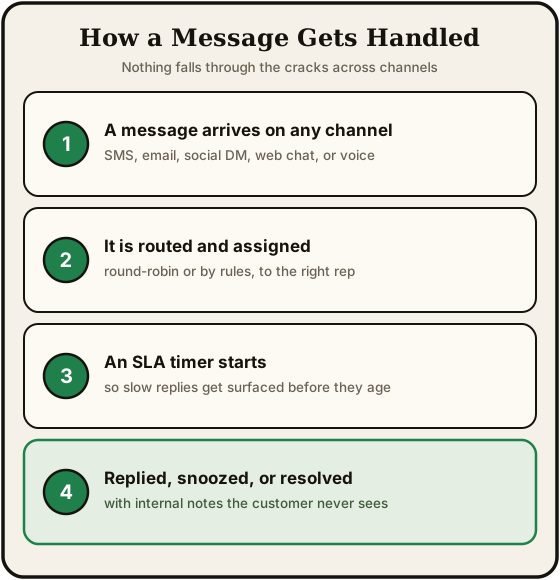
In the right panel, click the Assigned To dropdown to search and select a team member. You can optionally add an internal note explaining the assignment.
Filtering by Assignment#
Use the Mine tab to see only conversations assigned to you. The All tab shows everything, including unassigned conversations.
Snoozing#
Snooze a conversation to temporarily hide it from your inbox and have it reappear at a specific time.
- In the right panel, change the status to Snoozed
- Pick the date and time you want the conversation to resurface
- The conversation disappears from the main list until then
When the snooze time arrives, the conversation reappears in your inbox.
Status Management#
Conversations have three statuses:
| Status | Meaning |
|---|---|
| Open | Active - requires attention or response |
| Closed | Resolved - no further action needed |
| Snoozed | Hidden until a specified date and time |
Change the status from the dropdown in the right panel.
Starring and Archiving#
- Star a conversation to mark it as a favorite - starred conversations appear in the Starred tab
- Archive a conversation to remove it from the main list without deleting it - archived conversations appear in the Archived tab
Both actions are available from the right panel or by right-clicking a conversation in the list.
Contact Sidebar#
The right panel shows information about the contact in the current conversation:
- Contact details - Name, email, phone, company
- Tags - Add or remove tags for this conversation
- SLA status - Response time tracking with a live timer if awaiting a first response
- Timeline tab - Full interaction history with this contact across all channels
- Calls tab - Phone call log with the ability to record call details
- Snippets tab - Quick access to message templates
Additional Actions#
- Log a call - Record details of a phone conversation
- Export transcript - Download the conversation as a text file
- Merge - Combine two conversations for the same contact
- Create task - Add a follow-up task related to this conversation
Contact Matching#
When a new message arrives, the system automatically matches it to an existing contact by email, phone number, or social media profile.
If no match is found, a new contact is created with the available information (phone number, email, or profile name). A Needs details indicator appears so you can link it to the correct existing contact if the auto-match was wrong.
SLA Tracking#
SLA tracking monitors how quickly your team sends a first response to new conversations. It helps you maintain consistent response times across every channel and alerts you before deadlines are missed.
Enabling SLA Tracking#
Navigate to Conversations → Tracking tab to turn on SLA tracking for your sub-account. Once enabled, every new inbound conversation starts a response timer that counts until a team member sends the first reply.
Default Response Target#
Set a default target in minutes that applies to all channels. For example, setting a 15-minute target means the system expects a first response within 15 minutes of the initial inbound message.
Per-Channel Overrides#
Different channels often carry different urgency levels. You can override the default target for any individual channel:
| Channel | Example Target |
|---|---|
| SMS | 5 minutes |
| 60 minutes | |
| Gmail | 60 minutes |
| Facebook Messenger | 10 minutes |
| Instagram DM | 10 minutes |
If no override is set for a channel, it falls back to the default target.
Business Hours#
Enable business hours to count only the time your team is available. When a conversation arrives outside of business hours, the SLA timer pauses and resumes when the next business window opens. Configure your business hours schedule (days and times) and timezone from the Tracking tab.
At-Risk Threshold#
Set an at-risk threshold as a percentage of the response target. When the elapsed time crosses this threshold without a first response, the conversation is flagged as At risk in the inbox. For example, with a 15-minute target and a 75% threshold, the warning appears at the 11-minute mark.
Breach Notifications#
When a conversation exceeds its response target, the SLA is breached. You can configure breach notifications to alert your team:
- In-app alerts - A banner notification appears for the assigned team member
- Team member selection - Choose additional team members (such as managers) who should also receive breach notifications
Breached conversations are visually flagged in the conversation list and can be filtered using the SLA filter in the left panel.
Summary#
| Feature | How It Works |
|---|---|
| Channels | SMS, Email, Gmail, Facebook Messenger, Instagram, social DMs, web chat, and voice - all in one inbox |
| Filtering | Tabs (Mine, All, Unread, Starred, Archived) + channel, tag, and SLA filters |
| Searching | By contact info or full message content |
| Composing | Rich text for email, plain text for SMS/social, with merge fields and snippets |
| Channel switching | Reply on a different channel from the composer dropdown |
| Internal notes | Team-only messages with @mentions for notifications |
| Assignments | Assign conversations to team members with optional notes |
| Snoozing | Hide and resurface conversations at a specific time |
| Scheduling | Queue messages for future delivery |
| Contact matching | Automatic matching by email, phone, or social profile |
| Bulk actions | Mark read/unread, star, archive across multiple conversations |