
Help Center
Settings
Configure your account - business details, team access, notifications, billing, and more.
Last updated
Settings is where you configure your sub-account. From business information and branding to team permissions and billing, everything that shapes how your account operates lives here.
Business Details#
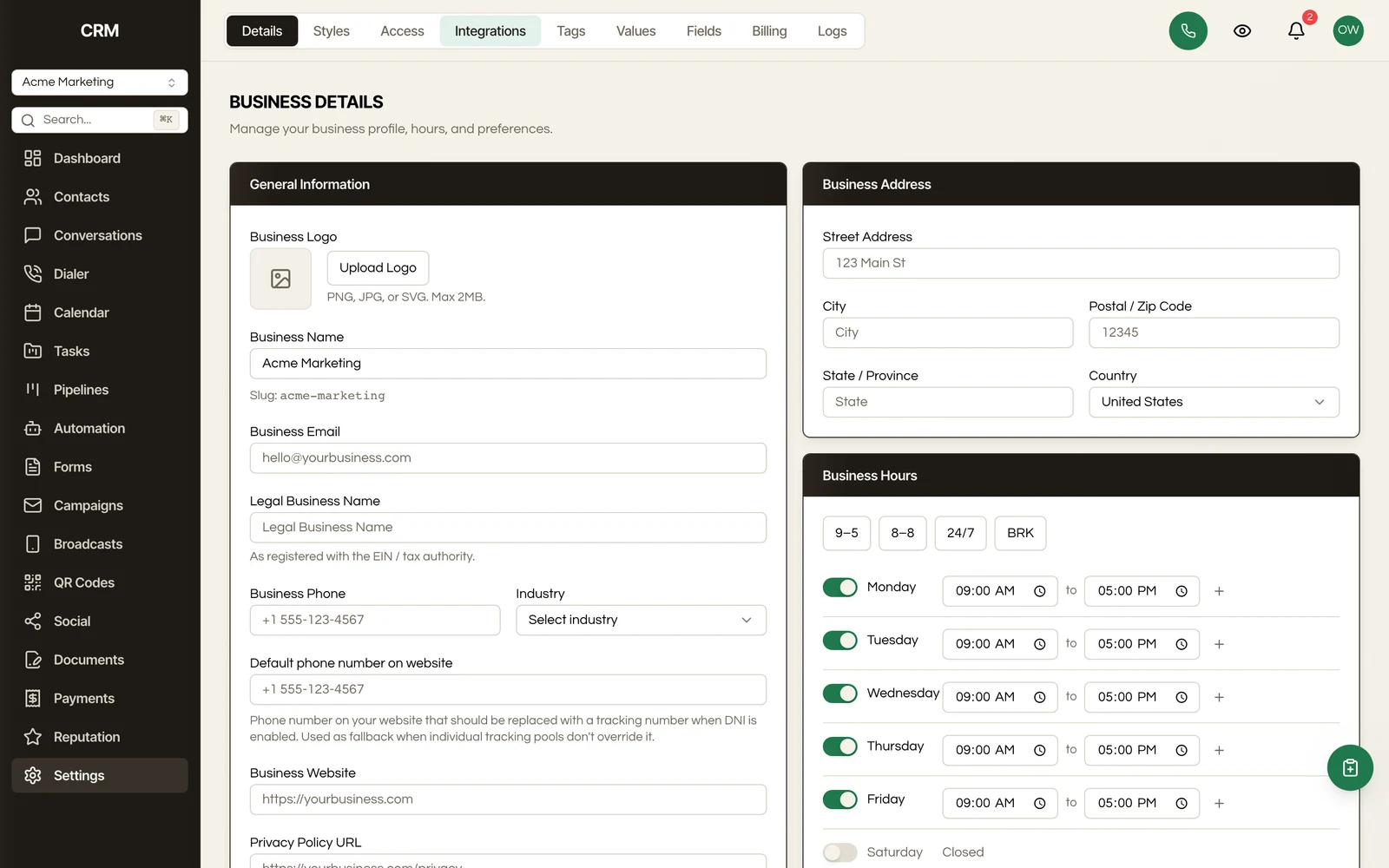
The Business Details section stores your company information and branding.
Agency Information#
Enter your business name, phone number, email address, website, and physical address. This information is used across the platform - in email footers, booking pages, invoices, and other client-facing materials.
Business Hours#
Set your standard operating hours for each day of the week. Business hours are used as defaults for appointment availability and can influence when automated messages are sent.
Branding#
Upload your company logo and set your brand color. These are applied to:
- Booking pages
- Forms
- Email templates
- Client-facing documents
Keeping your branding consistent across all touchpoints reinforces a professional appearance.
Access#
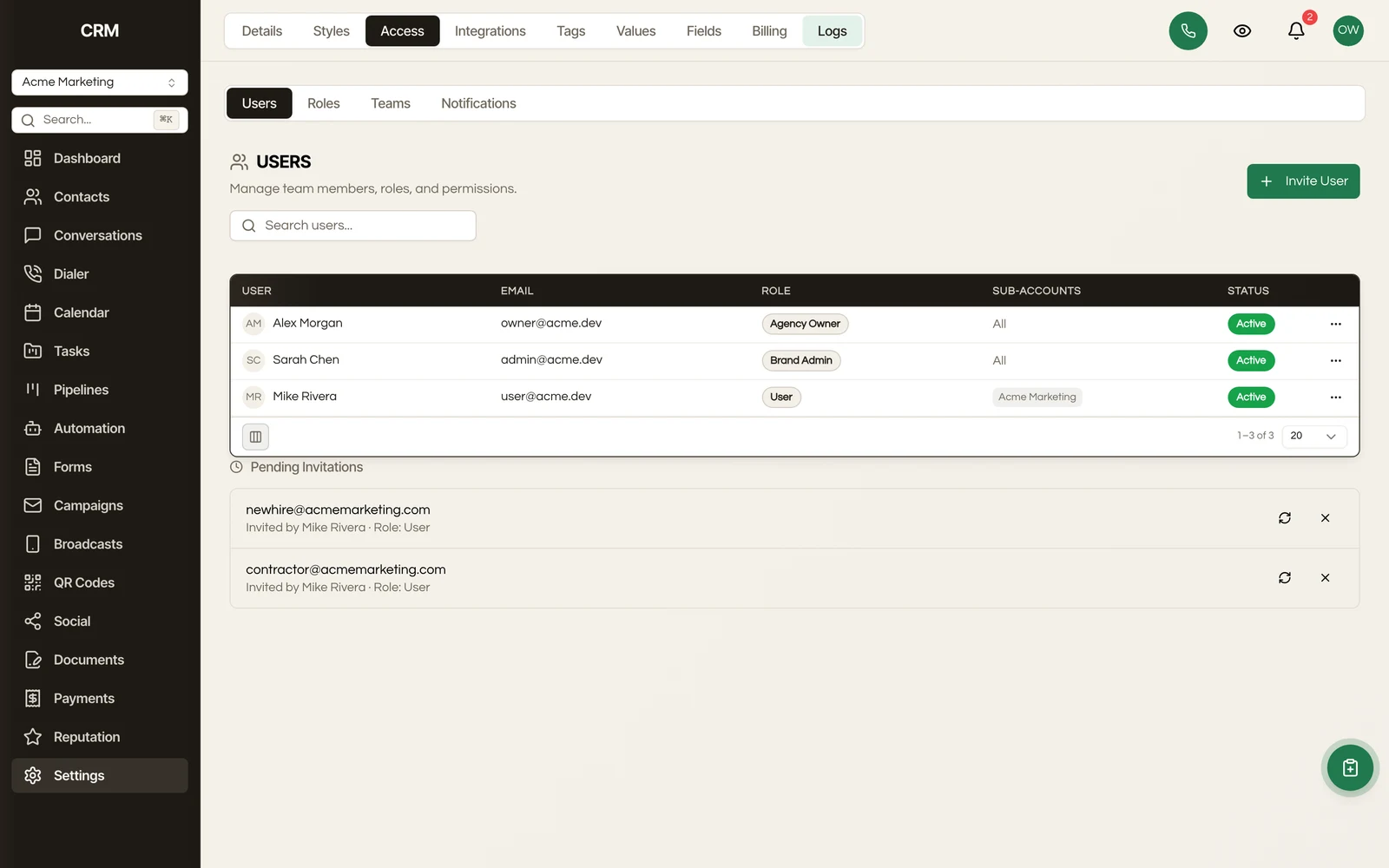
The Access section controls who can log in to your sub-account and what they can do.
Users#
View all users in your account. To invite a new user:
- Click Invite User
- Enter their name and email address
- Select a role
- Click Send Invite
The user receives an email invitation. Once they accept, they can log in and access the modules their role permits.
You can deactivate a user to revoke their access without deleting their account. Deactivated users can be reactivated later.
Roles#
Roles define what a user can see and do. Each role has a set of permissions across modules - for example, a role might have full access to contacts and conversations but read-only access to reporting.
To create a custom role:
- Go to Roles
- Click Create Role
- Enter a name
- Set permissions for each module (full access, read-only, or no access)
- Click Save
Assign roles to users when inviting them or from their user profile.
Teams#
Teams group users together for assignment and filtering purposes. For example, you might have a "Sales" team and a "Support" team. When assigning a contact, opportunity, or conversation, you can assign to a team, and any member of that team can pick it up.
Notifications#
Configure how you and your team are notified about events in the platform.
In-App Notifications#
In-app notifications appear as a badge in the navigation bar. You can enable or disable notifications for specific event types:
- New conversation message received
- Task assigned to you
- Daily Task Summary of your overdue tasks and tasks due in the next 24 hours
- Appointment booked, cancelled, or rescheduled
- Opportunity stage changed
- Form submission received
- Workflow errors
Email Notifications#
Email notifications send an alert to your email address for the same event types listed above. Enable or disable each type independently from in-app notifications - for example, you might want in-app alerts for new messages but email alerts only for workflow errors.
Each user controls their own notification preferences from their profile settings.
Billing#
The Billing section shows your current subscription and usage.
Current Plan#
View your plan name, included features, and billing cycle (monthly or annual). If multiple plan tiers are available, you can compare plans and upgrade or downgrade.
Usage#
Track your usage against plan limits, including:
- Number of contacts
- Number of users
- Messages sent (email and SMS)
- Storage used
Usage meters show how close you are to each limit.
Managing Your Subscription#
Update your payment method, view past invoices, and manage your subscription. Changes to your plan take effect at the start of your next billing cycle unless otherwise noted.
Covering a Client's Usage Yourself#
Usage costs (messaging, calls) normally bill through to the client whose sub-account produced them. Billing passthrough is a per-sub-account switch in Admin that flips this: turn it on for a client and your agency absorbs their usage instead.
Use it when a client is on a flat all-in retainer and you would rather they never saw a usage line. It is set per client, so you can absorb usage for one and pass it through for the next.
Adjusting Your Own Limits#
Three limits that used to be fixed can now be raised or lowered yourself, rather than being something to work around:
- Workspace send caps - how much email and SMS the workspace can send.
- Per-workflow daily execution cap - how many times a single workflow may run in a day.
- Per-user hourly composer limit - how many messages one person can send by hand in an hour.
They exist to contain a runaway automation or a compromised account, so raise them deliberately. If you find yourself lifting the workflow cap repeatedly, check that the workflow is not re-entering in a loop before assuming the cap is the problem.
Custom Values#
Custom values are reusable merge-field values that you define once and reference throughout the platform - in email templates, workflows, forms, and documents.
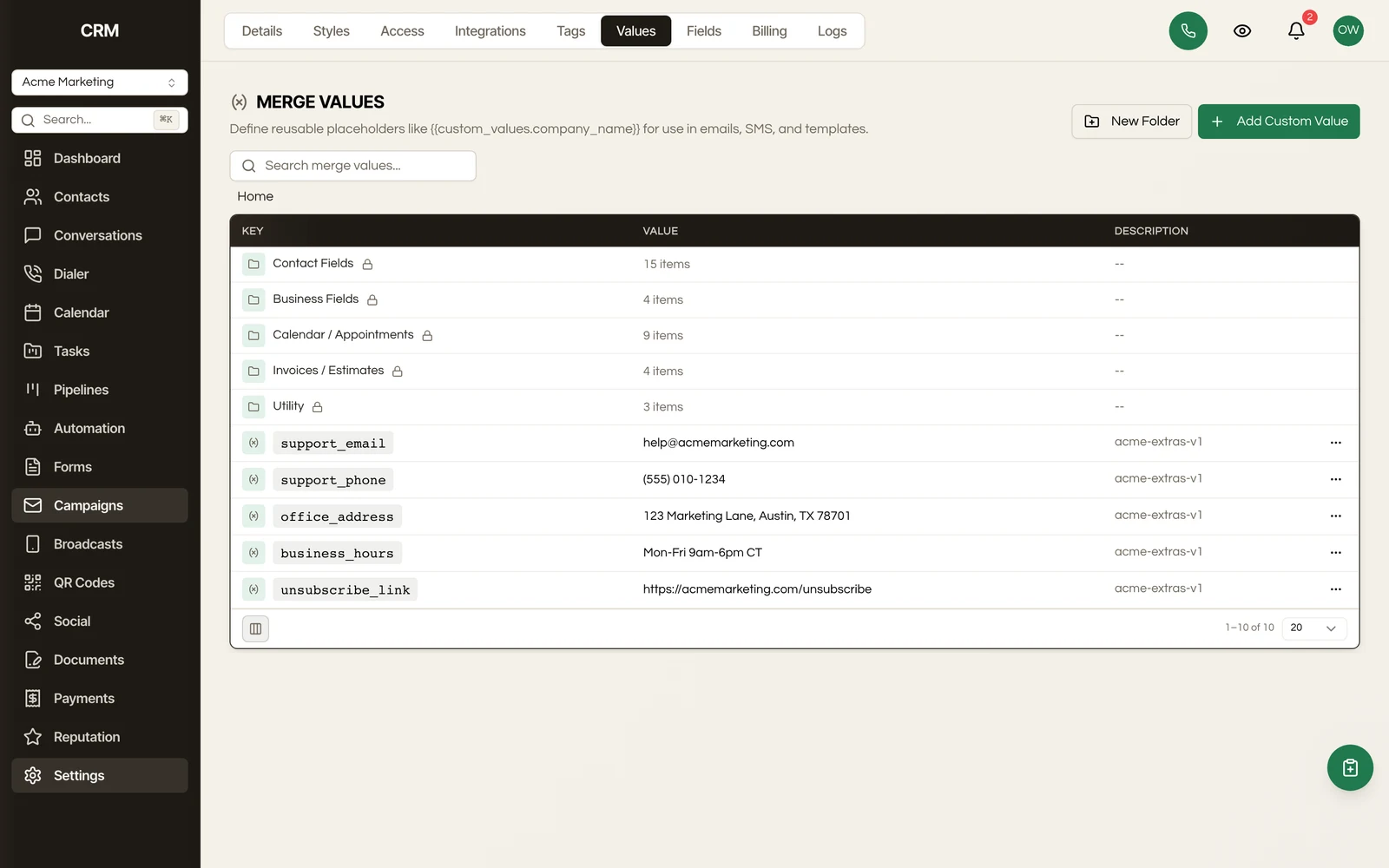
For example, you might create a custom value called "Support Email" with the value "[email protected]." Anywhere you insert that merge field, it resolves to the stored value. When you update the custom value, every reference updates automatically.
Creating a Custom Value#
- Go to Custom Values
- Click Add Value
- Enter a name and value
- Click Save
Custom values are especially useful for information that appears in many places and may change - support emails, office addresses, scheduling links, or standard disclaimers.
Audit Log#
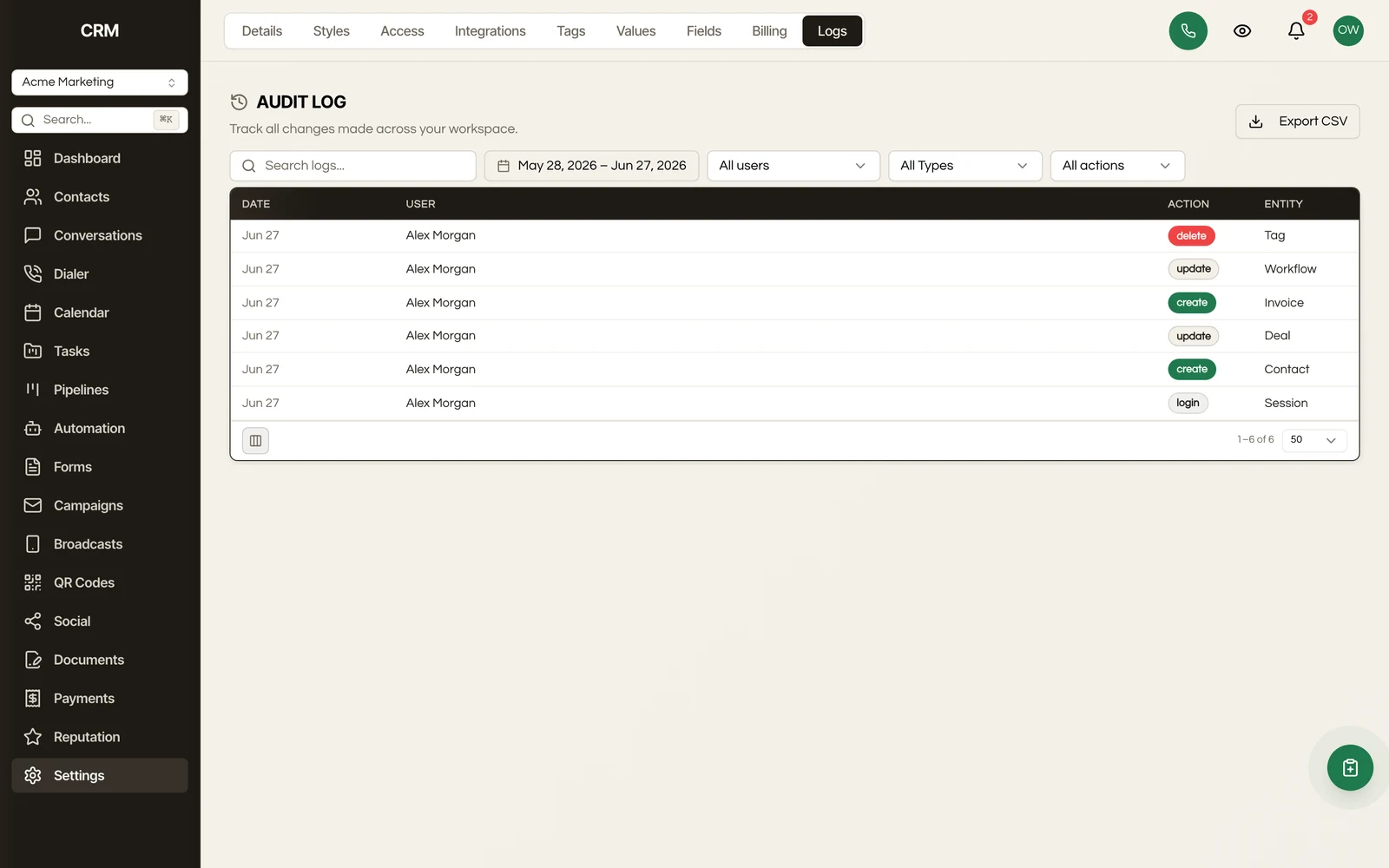
The audit log records every significant action taken in your sub-account so you can track who changed what and when.
What Is Logged#
- User logins
- Record creation, updates, and deletion (contacts, opportunities, tasks, etc.)
- Settings changes
- Role and permission changes
- Workflow activations and deactivations
- Billing changes
Viewing the Log#
The audit log displays entries in reverse chronological order. Each entry shows the action taken, the user who performed it, the affected record, and a timestamp.
Filtering#
Filter the audit log by:
- User - See all actions by a specific team member
- Action type - Filter to creations, updates, deletions, or logins
- Date range - Narrow to a specific time period
- Module - Focus on actions within a specific module (contacts, opportunities, settings, etc.)
The audit log is read-only. Entries cannot be edited or deleted, ensuring a reliable record of account activity.
Summary#
| Section | What You Configure |
|---|---|
| Business Details | Company name, address, phone, email, business hours, logo, and brand color |
| Access | Users (invite, deactivate), Roles (permissions per module), Teams (group users) |
| Notifications | In-app and email alerts per event type, configured per user |
| Billing | Current plan, usage meters, payment method, invoices, and subscription management |
| Custom Values | Reusable merge-field values for templates, workflows, and documents |
| Audit Log | Searchable log of all actions filtered by user, action type, date, and module |