
Help Center
Bulk SMS
Send SMS campaigns to contact lists using templates, with delivery tracking and analytics.
Last updated
The Bulk SMS module lets you send text message campaigns to groups of contacts at once. Build reusable templates with personalization, target specific audiences, schedule sends, and track delivery and engagement for every campaign.
Overview#
Bulk SMS is designed for outbound text messaging at scale - appointment reminders, promotional offers, event announcements, and other time-sensitive communications. Messages are sent through your connected phone number and delivery status is tracked for every recipient.
SMS Templates#
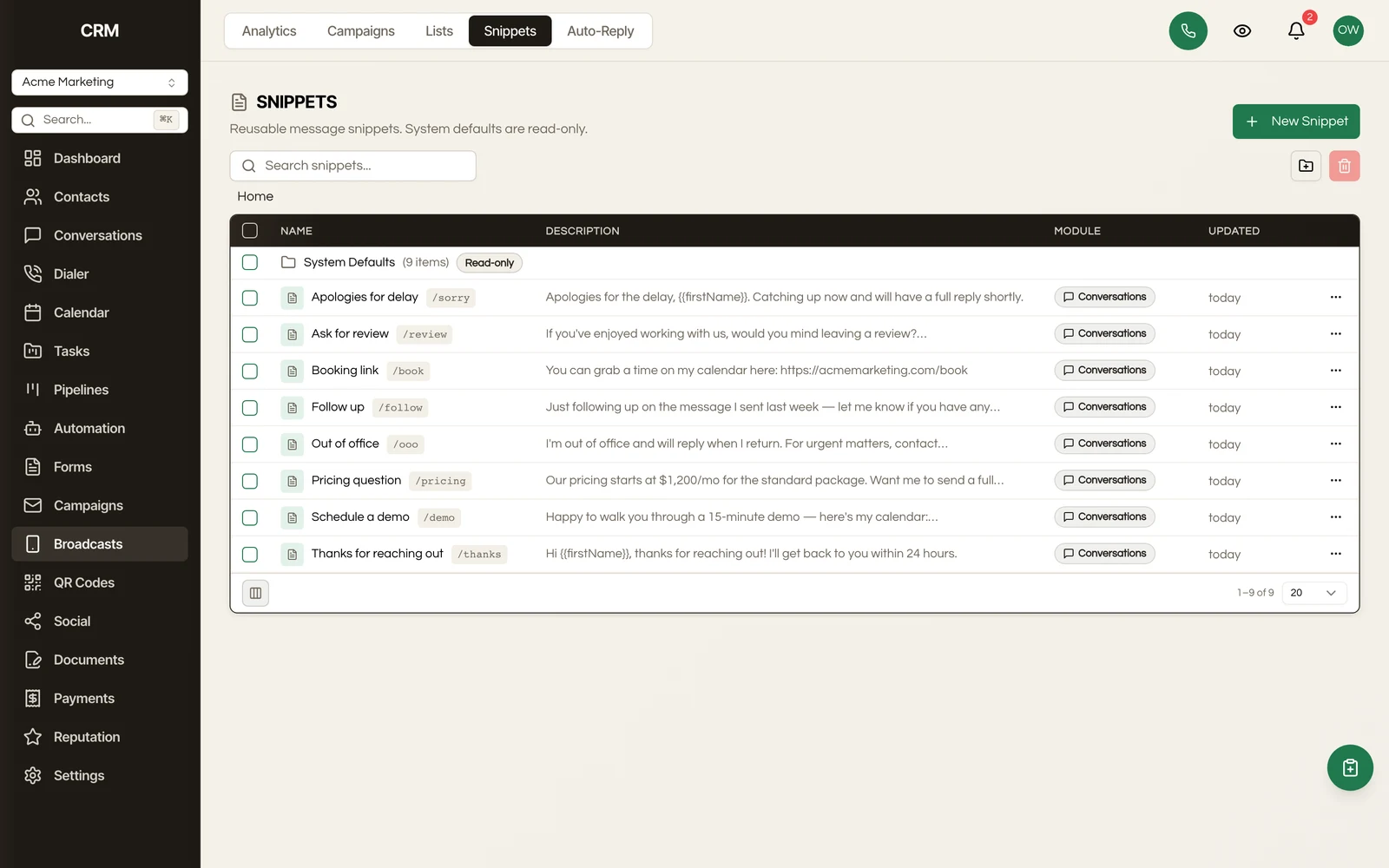
Templates let you create reusable messages that your team can send consistently.
Creating a Template#
- Navigate to Bulk SMS and open the Templates tab
- Click New Template
- Enter a template name and compose your message in the text area
Merge Fields#
Insert personalization tokens to tailor each message to the recipient:
- Contact fields - First name, last name, phone, email, company, and any custom fields
- Custom values - Business name, address, website, and other values defined in settings
Merge fields appear as tokens like {{firstName}} in the template and are replaced with each contact's actual data when the message is sent.
Character Count#
The composer displays a live character count and segment estimate as you type:
| Encoding | Characters per Segment |
|---|---|
| Standard (GSM-7) | 160 characters |
| Extended (Unicode) | 70 characters |
Messages longer than one segment are automatically split and reassembled on the recipient's device. The cost per message increases with each additional segment, so the counter helps you keep messages concise.
Preview#
A phone mockup on the right shows how your message will look to the recipient. Merge fields are replaced with sample data so you can check formatting and length before sending.
Sending a Bulk SMS#
Selecting an Audience#
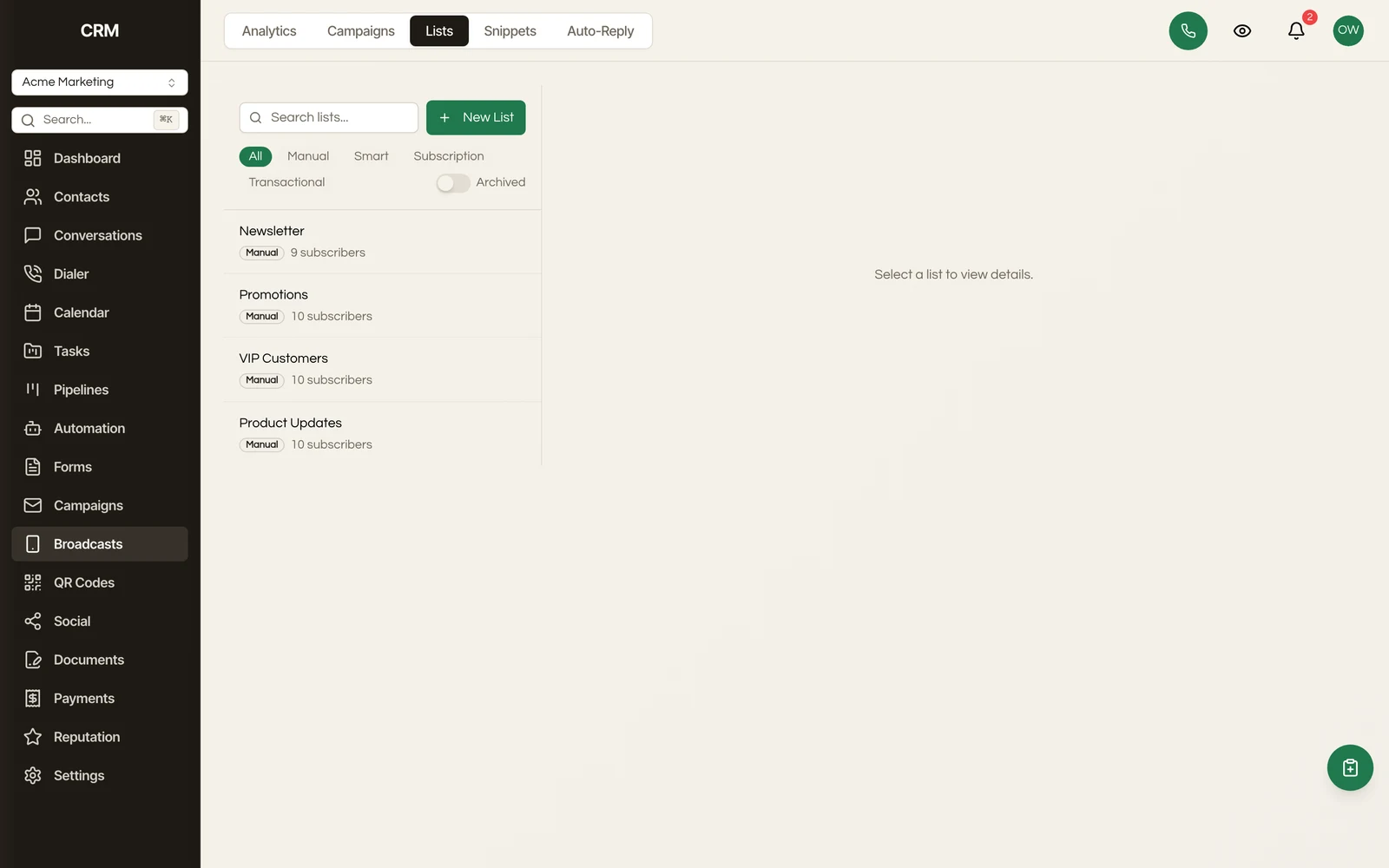
Choose who receives your message:
- All contacts - Every contact with a phone number on file
- Segment - Target a saved segment for more precise targeting
- Tag - Send to contacts with a specific tag
The audience preview shows the total number of recipients and a sample of matching contacts. Contacts without a phone number are automatically excluded.
Choosing a Template#
Select a saved template or write a one-off message directly in the composer. If you use a template, you can customize the content before sending without changing the original template.
Scheduling#
| Option | What It Does |
|---|---|
| Send Now | Begins delivering messages immediately in batches |
| Schedule | Pick a date and time - the campaign is queued and sent automatically |
For scheduled campaigns, the status changes to Scheduled and you can cancel or reschedule before the send time arrives.
Review and Confirm#
Before sending, a confirmation screen shows:
- The message content with a character and segment count
- The audience size and any contacts that will be skipped
- The estimated send time
- The sending phone number
Click Confirm and Send to start delivery.
Analytics#
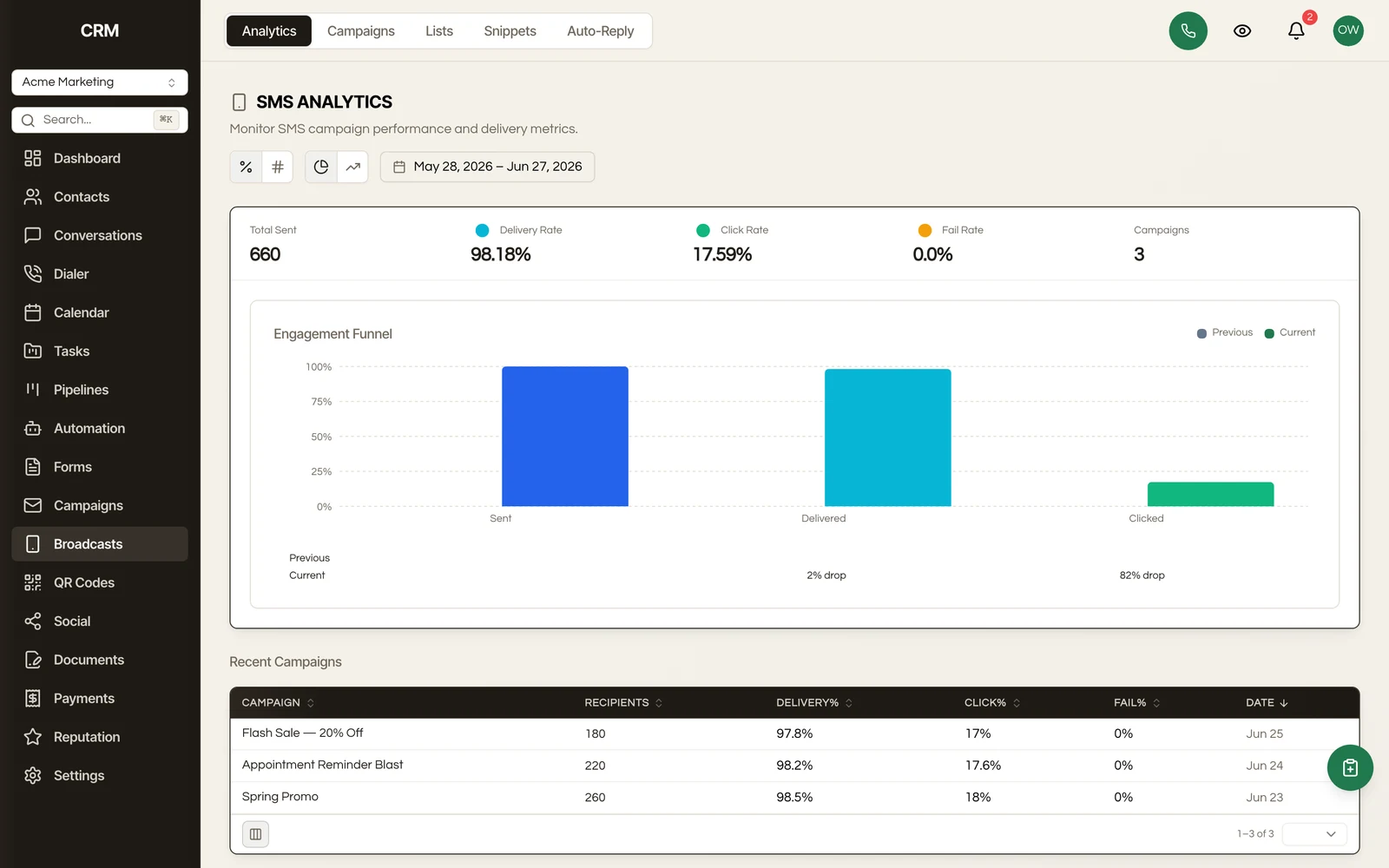
After a campaign is sent (or while it is sending), the analytics view tracks delivery and engagement.
Delivery Rates#
Key delivery metrics for each campaign:
| Metric | What It Measures |
|---|---|
| Sent | Total messages dispatched |
| Delivered | Successfully reached the recipient's device |
| Failed | Could not be delivered (invalid number, carrier rejection, etc.) |
| Delivery Rate | Delivered divided by sent, shown as a percentage |
Per-Campaign Performance#
A table lists all campaigns with their name, send date, audience size, delivery rate, and status. Click any campaign to view its full recipient list and per-contact delivery status.
Charts and Export#
Visual charts show delivery volume per campaign and a breakdown of failure reasons. Export recipient details as a CSV file including contact name, phone number, delivery status, and timestamp.
Compliance#
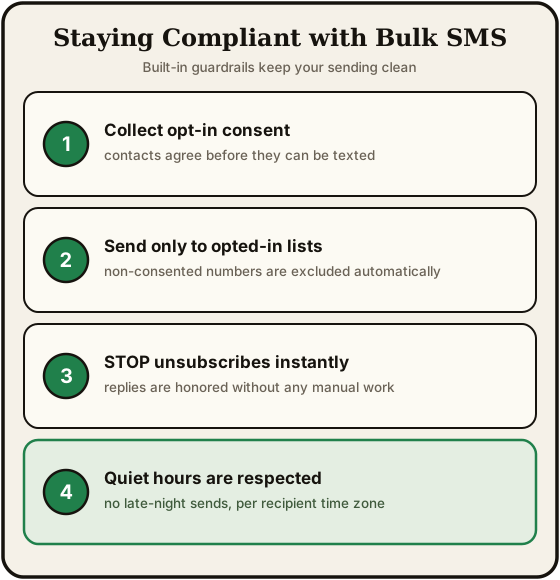
Bulk SMS includes built-in safeguards to help you stay compliant with messaging regulations.
Opt-Out Handling#
When a recipient replies with a standard opt-out keyword (such as STOP, UNSUBSCRIBE, END, or QUIT), they are automatically added to the suppression list and receive a confirmation. Future bulk SMS campaigns skip suppressed contacts. Recipients can resume messaging by replying with a start keyword (such as START or SUBSCRIBE).
Suppression List#
The suppression list shows all contacts who have opted out of SMS communications:
- View the contact name, phone number, opt-out date, and reason
- Manually add contacts to the suppression list if needed
- Remove a contact from the list to re-enable messaging (only if they have re-consented)
- Import or export the suppression list as CSV
Best Practices#
- Always identify your business in the message so recipients know who is texting them
- Include opt-out instructions (e.g., "Reply STOP to unsubscribe") in every campaign
- Respect quiet hours - avoid sending messages early in the morning or late at night
- Only message contacts who have given explicit consent to receive texts
Summary#
| Feature | Detail |
|---|---|
| Templates | Reusable messages with merge fields, live character count, and phone preview |
| Audience | All contacts, saved segments, or tagged groups |
| Scheduling | Send immediately or schedule for a specific date and time |
| Delivery tracking | Per-recipient status (sent, delivered, failed) with delivery rate metrics |
| Analytics | Campaign performance table, delivery charts, failure breakdown, and CSV export |
| Compliance | Automatic opt-out handling, suppression list management, and opt-out confirmation |