
Help Center
Contacts
Manage your client database - import contacts, use custom fields, tags, segments, and lifecycle stages.
Last updated
Every conversation, opportunity, invoice, and workflow in Seedly CRM connects back to a contact record. This page covers creating, organizing, and managing your contacts.
Contact List#
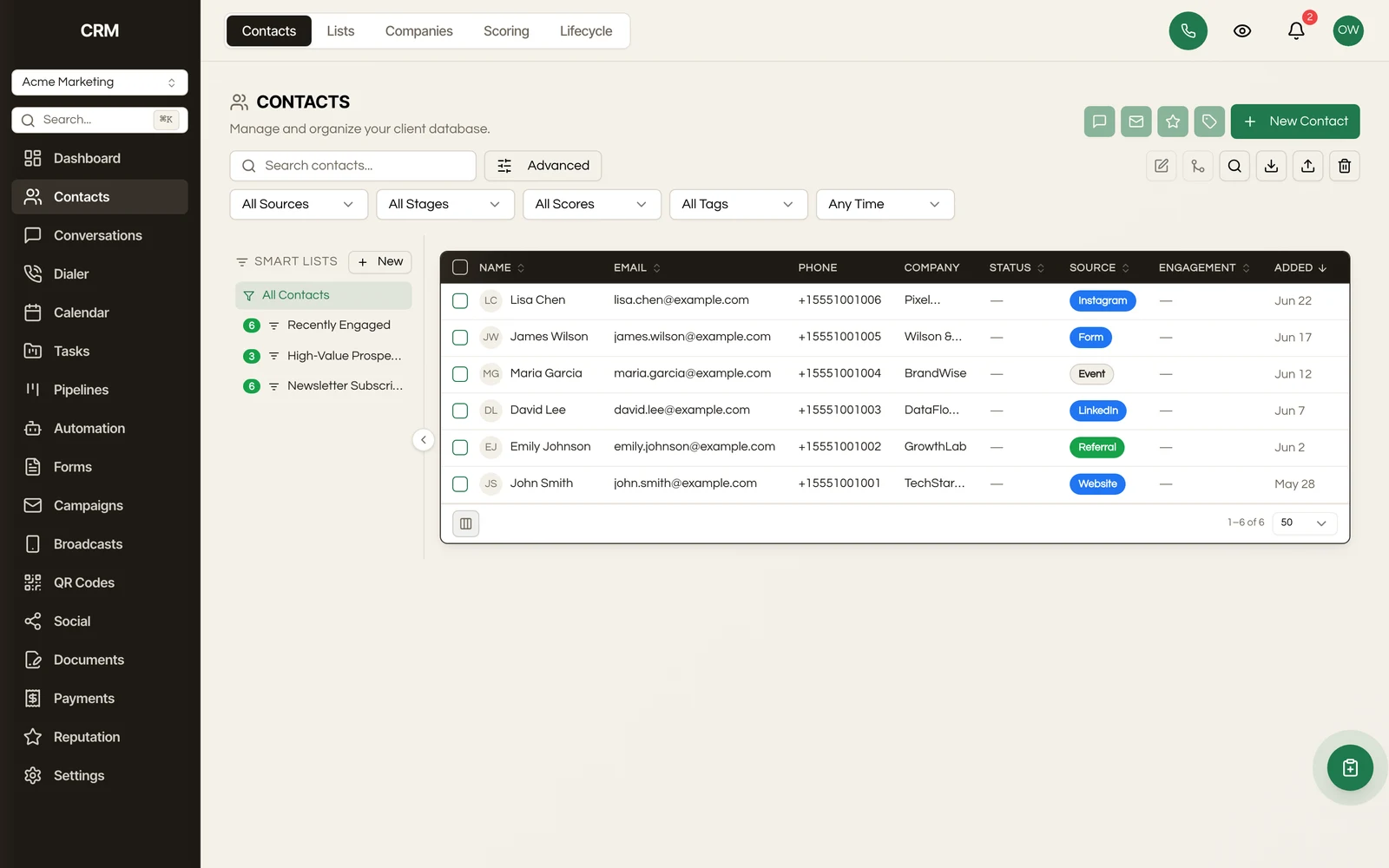
The contacts page shows all contacts in your sub-account as a searchable, filterable table.
Columns#
The table displays name, email, phone, company, lifecycle stage, engagement score, tags, assigned user, and created date. You can customize which columns are visible.
Searching#
Use the search bar to find contacts by name, email, phone number, or company.
Filtering#
Filter contacts by:
- Lifecycle stage
- Tags
- Assigned user
- Source
- Company
- Custom field values
- Date ranges (created, last contacted)
Combine multiple filters to narrow your view. Save a filter combination as a Segment to reuse it later.
Creating a Contact#
- Click Create Contact
- Fill in the details:
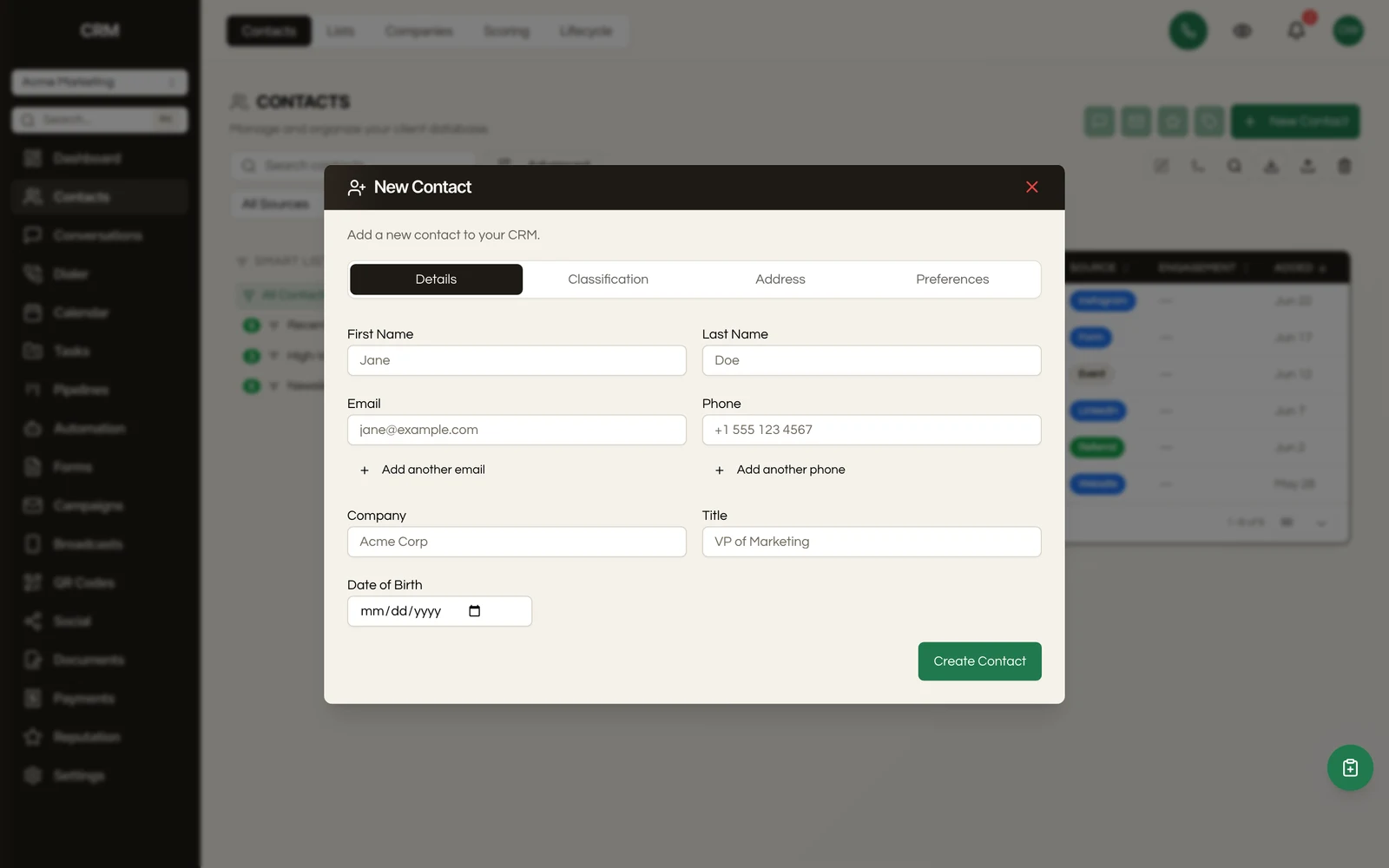
| Field | Required | Description |
|---|---|---|
| First name | Yes | Contact's first name |
| Last name | No | Contact's last name |
| No | Email address (needed for email campaigns and Gmail sync) | |
| Phone | No | Phone number (needed for SMS) |
| Company | No | Company name (creates or links to a company record) |
- Add any custom fields, tags, or notes
- Click Create
At minimum, a contact needs a first name. To communicate with a contact, you need their email (for email) or phone number (for SMS).
Contact Detail#
Click a contact to open their detail page. This includes:
Profile Fields#
All standard and custom fields - edit any field by clicking on it. Fields include name, email, phone, company, address, source, lifecycle stage, assigned user, and any custom fields you have defined.
Activity Timeline#
A chronological log of everything related to this contact:
- Messages sent and received
- Emails opened and clicked
- Stage changes in pipelines
- Form submissions
- Workflow enrollments
- Notes added
- Appointments booked
- Invoices created
Conversations#
View all conversations with this contact across every channel (SMS, email, Messenger, Instagram). Click a conversation to jump to the inbox.
Notes#
Add internal notes about the contact. Notes are visible to your team and appear in the activity timeline.
Opportunities#
All pipeline opportunities associated with this contact.
Invoices#
All invoices sent to this contact.
Appointments#
Scheduled and past appointments.
Companies#
Companies group contacts that belong to the same organization.
Creating a Company#
Companies can be created:
- Automatically - When you enter a company name on a contact, the company record is created if it does not exist
- Manually - From the Companies tab in the contacts module
Company Detail#
A company record shows:
- Company name, website, industry, address
- All contacts linked to this company
- A combined activity timeline across all associated contacts
Linking Contacts#
Set the Company field on a contact to link them. Multiple contacts can share the same company.
CSV Import#
Import contacts from a spreadsheet.
Import Flow#
- Click Import on the contacts list
- Upload a CSV file
- Map columns - Match each CSV column to a contact field (first name, email, phone, tags, etc.)
- Choose duplicate handling - Skip duplicates or merge with existing records
- Review the preview
- Click Import
Tips#
- Tags can be included as a comma-separated list in a single column
- Custom fields are available in the column mapping if they have been created in settings
- The import preview shows how many contacts will be created and how many will be skipped or merged
Custom Fields#
Extend contact records with fields specific to your business.
Field Types#
- Text, number, phone, email, URL
- Monetary (currency amount)
- Dropdown (single select)
- Radio buttons
- Checkbox (yes/no)
- Date
- File upload
- Signature
- Text list (multiple text entries)
Managing Custom Fields#
Go to Settings → Custom Fields to create, edit, reorder, and delete fields. Custom fields appear on the contact detail page and are available in filters, segments, workflows, and forms.
Tags#
Tags are labels you apply to contacts for quick categorization and filtering.
Using Tags#
- Add tags from the contact detail page or during import
- Remove tags by clicking the X on a tag badge
- Filter the contact list by one or more tags
- Tags can be organized into folders in Settings → Tags
Bulk Tagging#
Select multiple contacts in the list view and use the bulk actions toolbar to add or remove tags from all selected contacts at once.
Segments#
Segments are saved filter combinations that define a group of contacts. They are used for campaign targeting and reporting.
Creating a Segment#
- Apply filters on the contact list (lifecycle stage, tags, custom fields, date ranges, etc.)
- Click Save as Segment
- Enter a name
- The segment is saved and available for reuse
Dynamic Segments#
Segments are dynamic - the contacts in a segment update automatically as contact data changes. If a contact meets the filter criteria, they are included. If they no longer meet the criteria, they are removed.
Using Segments#
- Target a segment in Campaigns to send to a specific audience
- Use segments in Reporting to analyze subsets of your contacts
- Reference segments in Workflows for conditional logic
Lifecycle Stages#
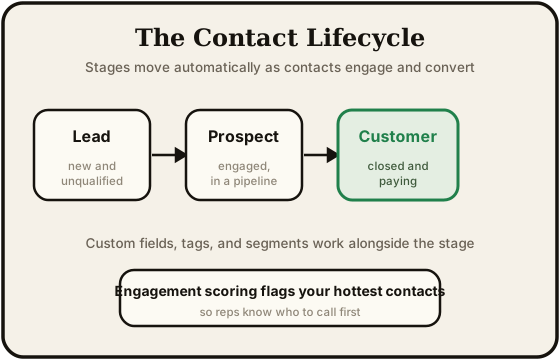
Every contact has a lifecycle stage that indicates where they are in your relationship:
| Stage | Meaning |
|---|---|
| Lead | New contact, not yet qualified |
| Qualified | Evaluated and considered a potential client |
| Customer | Active paying client |
| Repeat | Returning client with multiple engagements |
| Inactive | No recent activity or engagement |
Change a contact's lifecycle stage from their detail page. Stage changes are logged in the activity timeline and can trigger workflows.
Engagement Scoring#
Each contact has an engagement score that reflects how actively they interact with your communications and content.
| Tier | Score Range | Meaning |
|---|---|---|
| Hot | 76-100 | Highly engaged |
| Warm | 51-75 | Moderately engaged |
| Cool | 26-50 | Some engagement |
| Cold | 0-25 | Low or no engagement |
Scores update automatically based on activity - opening emails, clicking links, replying to messages, submitting forms, and other interactions. You can also adjust scores manually or through workflow actions.
Bulk Actions#
Select multiple contacts in the list view to:
- Add or remove tags
- Change lifecycle stage
- Assign to a user
- Enroll in a workflow
- Export as CSV
- Delete (soft delete - contacts move to trash)
Trash and Deletion#
When you delete a contact, it moves to the Trash. Contacts in the trash:
- Are hidden from the main list and all modules
- Can be restored back to active status
- Can be permanently deleted after a retention period
To view trashed contacts, switch to the trash view from the contacts list.
Exporting#
Export your contacts as a CSV file:
- Optionally apply filters or select specific contacts
- Click Export
- Download the generated CSV file
The export includes all standard and custom fields.
Summary#
| Feature | Detail |
|---|---|
| Fields | Name, email, phone, company, address, source, lifecycle stage, custom fields |
| Companies | Group contacts by organization with shared timelines |
| Import | CSV upload with column mapping and duplicate handling |
| Custom fields | Text, number, date, dropdown, radio, checkbox, URL, email, phone, monetary, file, signature, text list |
| Tags | Labels for categorization, with folder organization |
| Segments | Dynamic saved filters for targeting and reporting |
| Lifecycle stages | Lead, Qualified, Customer, Repeat, Inactive |
| Scoring | Hot (76+), Warm (51-75), Cool (26-50), Cold (0-25) |
| Bulk actions | Tag, assign, enroll in workflow, export, delete |
| Trash | Soft delete with restore capability |